Skip to content
Mizban

Guest feedback

Management reads guest scores by building and files each comment with a category and a note.

ManagementOn a computer7 steps
Set the period to 30 days to see the recent scores.Each building's scores for cleanliness, readiness, amenities and host behaviour come with sample counts.The guest in suite S6 thanks the host for a warm welcome; click Save review.Set the management category to Host, so it is counted correctly in reports.Write a management note; a single comment is never grounds for a reward or a penalty.Click Save to file your review with the comment.The category and note show under the comment, which can still become a case if needed.

Set the period to 30 days to see the recent scores.

Step by step

  1. 1

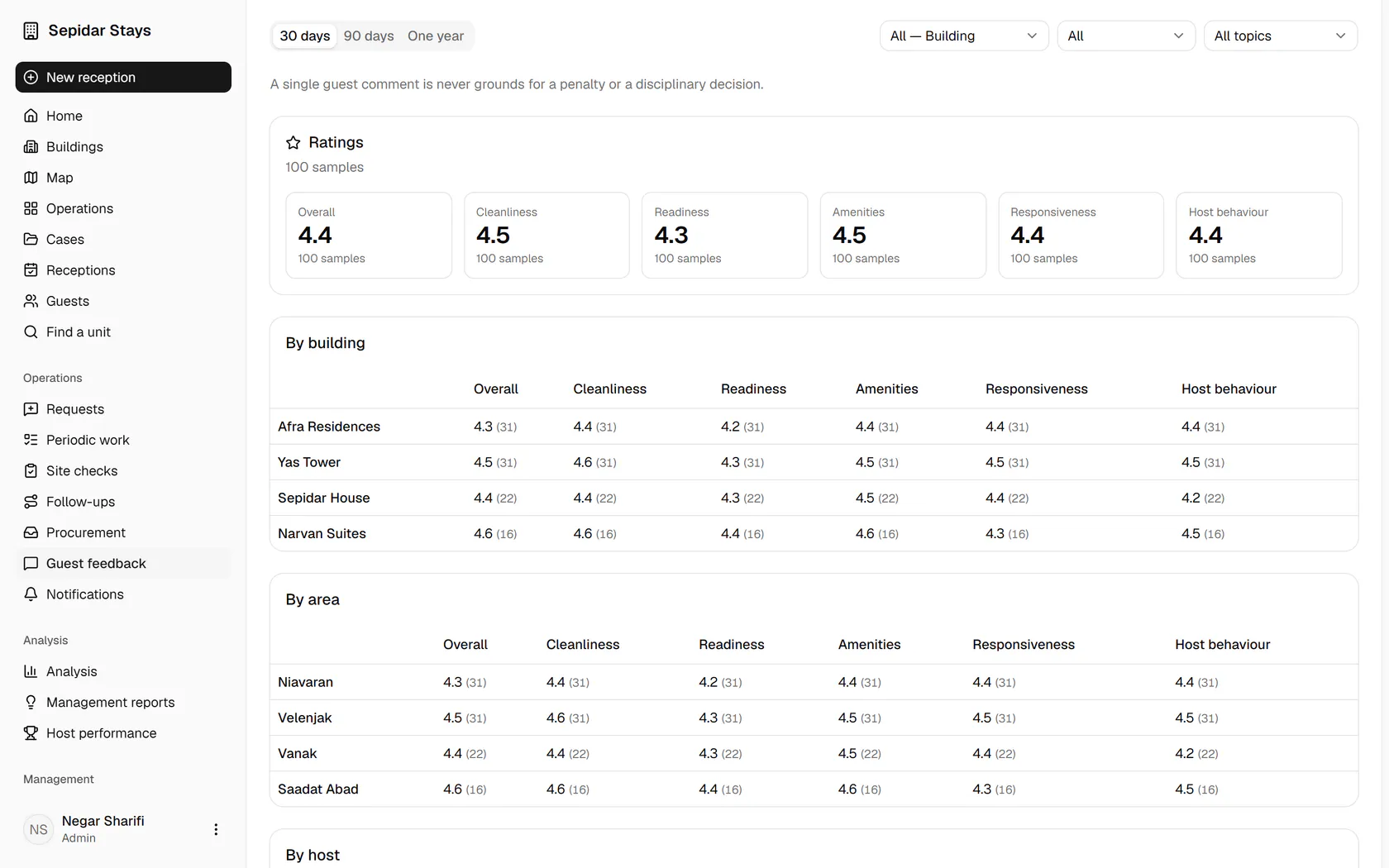
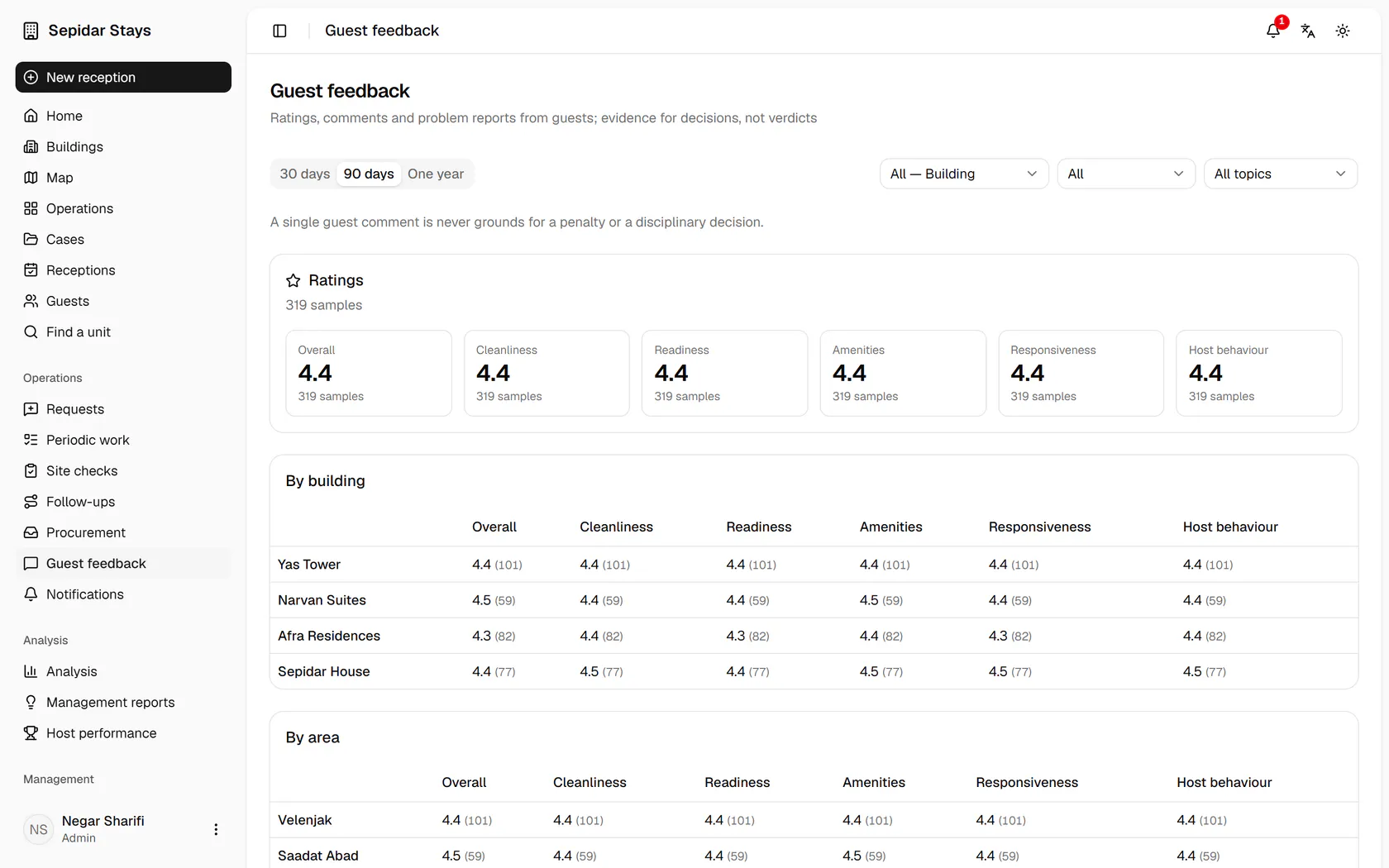
    Set the period to 30 days to see the recent scores.

    Set the period to 30 days to see the recent scores.
  2. 2

    Each building's scores for cleanliness, readiness, amenities and host behaviour come with sample counts.

    Each building's scores for cleanliness, readiness, amenities and host behaviour come with sample counts.
  3. 3

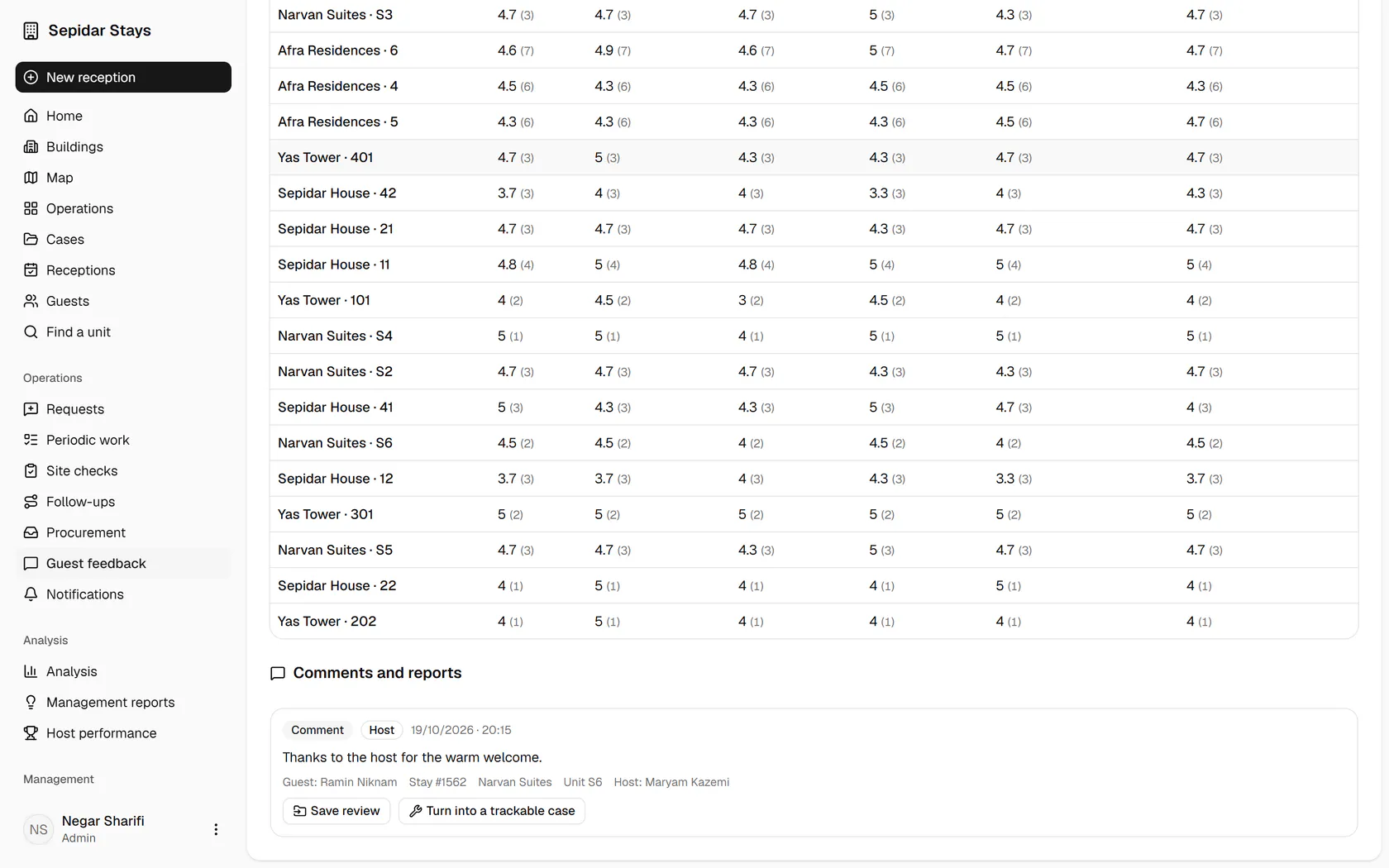
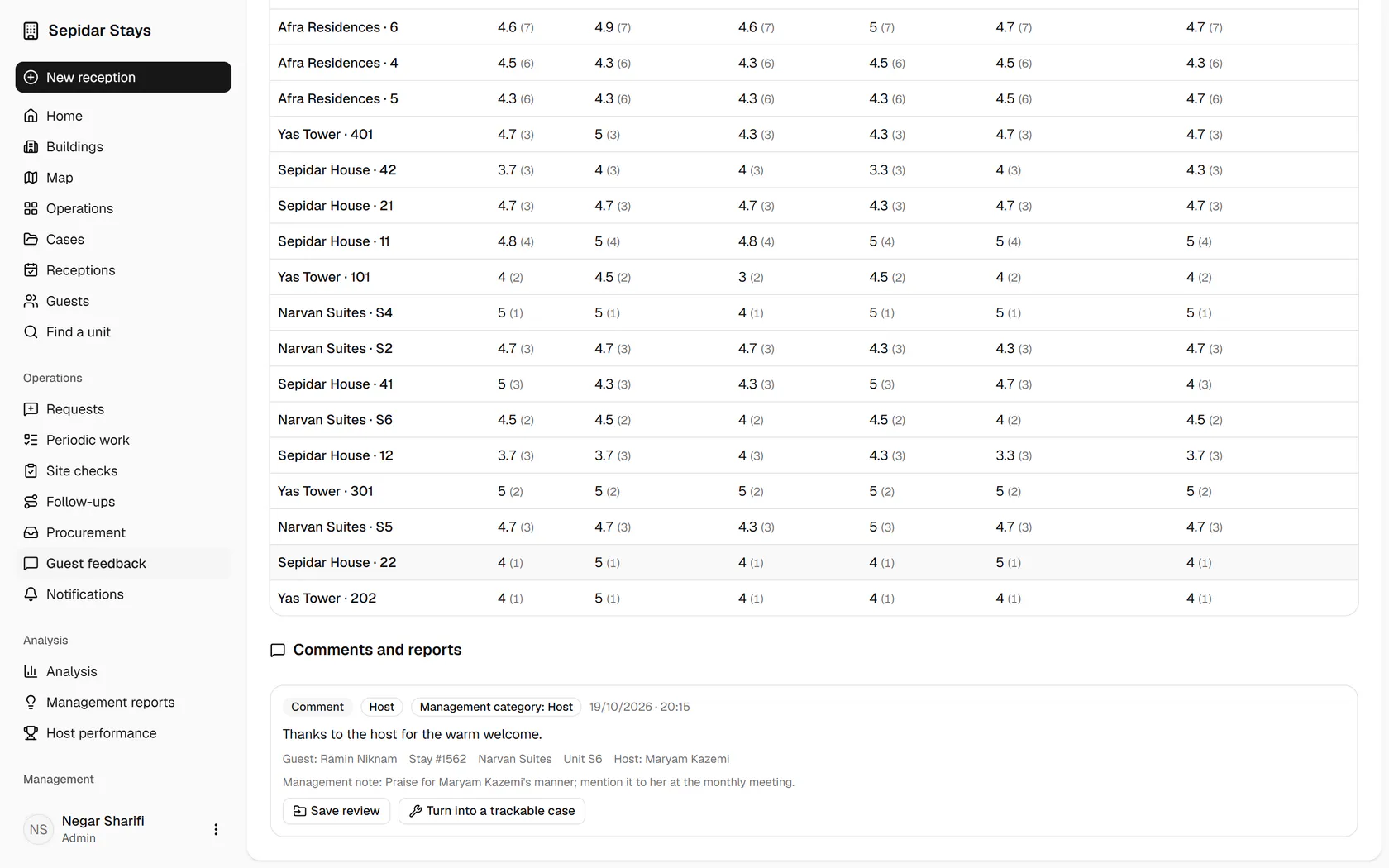
    The guest in suite S6 thanks the host for a warm welcome; click Save review.

    The guest in suite S6 thanks the host for a warm welcome; click Save review.
  4. 4

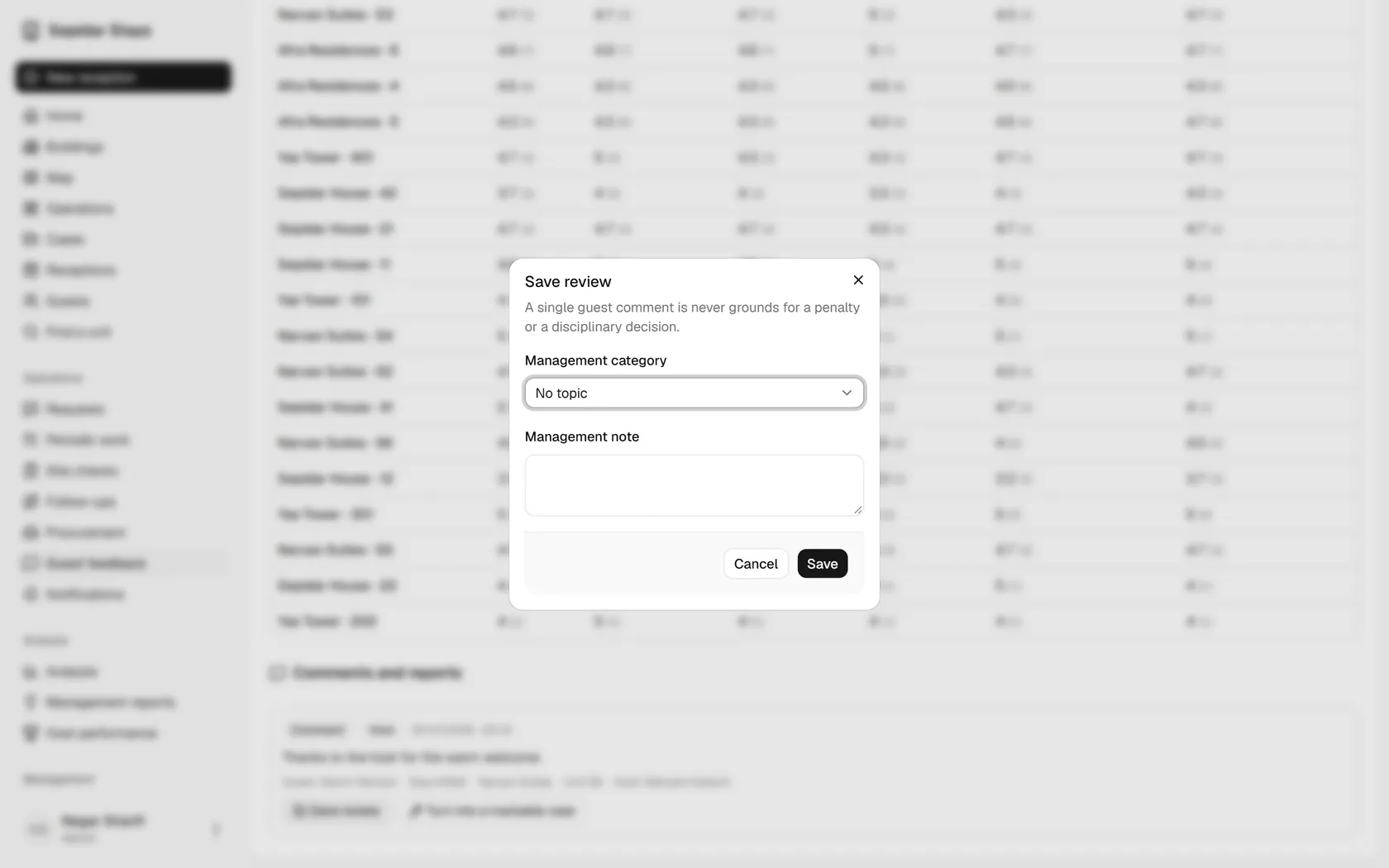
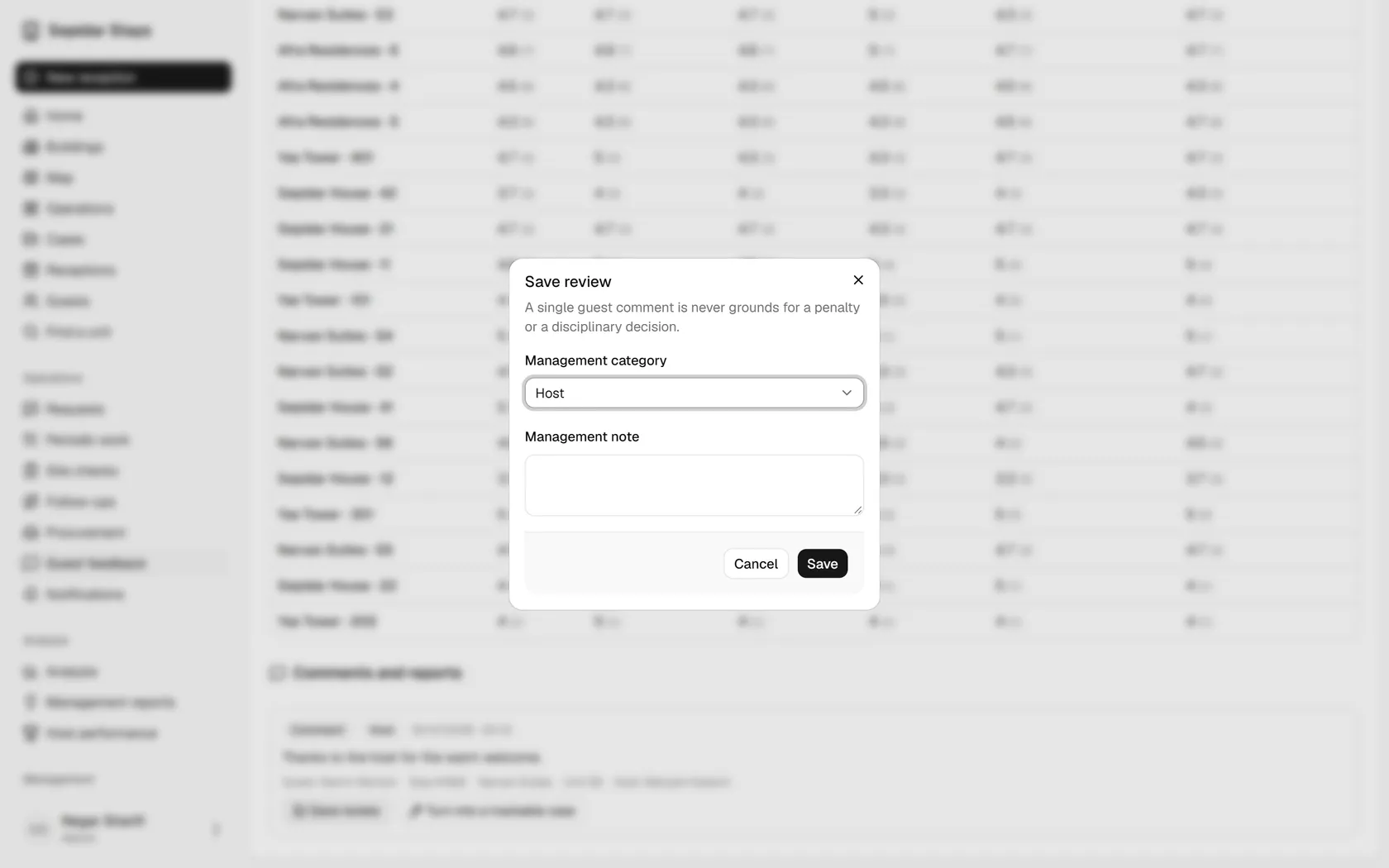
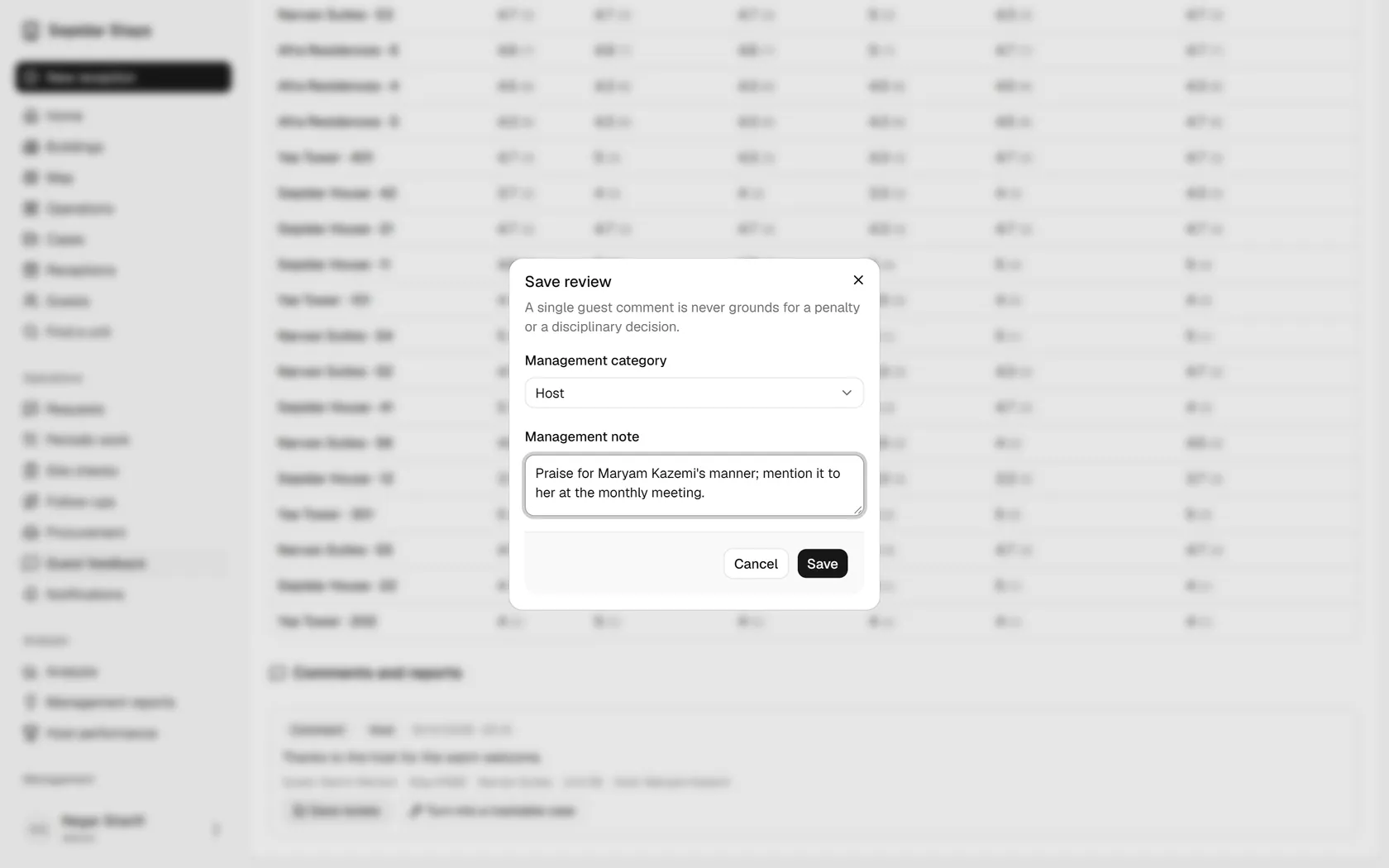
    Set the management category to Host, so it is counted correctly in reports.

    Set the management category to Host, so it is counted correctly in reports.
  5. 5

    Write a management note; a single comment is never grounds for a reward or a penalty.

    Write a management note; a single comment is never grounds for a reward or a penalty.
  6. 6

    Click Save to file your review with the comment.

    Click Save to file your review with the comment.
  7. 7

    The category and note show under the comment, which can still become a case if needed.

    The category and note show under the comment, which can still become a case if needed.