Mizban guide
Every section opens with an animated tour, then walks through each step with a real screenshot.
Management
Sees at a glance what is happening, where the problems are and where money could leak; sets up buildings, people and rules.
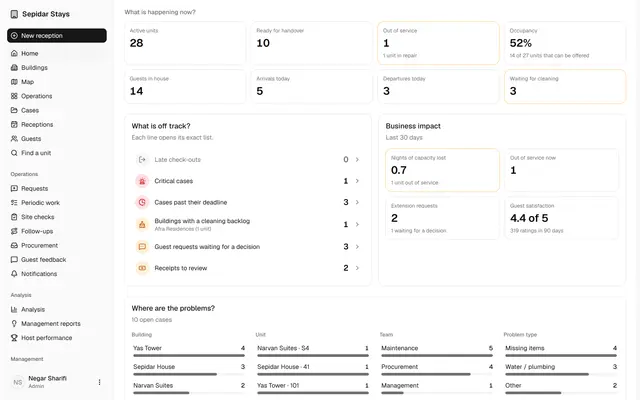
The whole operation at a glance
Management sees what is happening now, what is off track and where money may leak, without calling anyone.
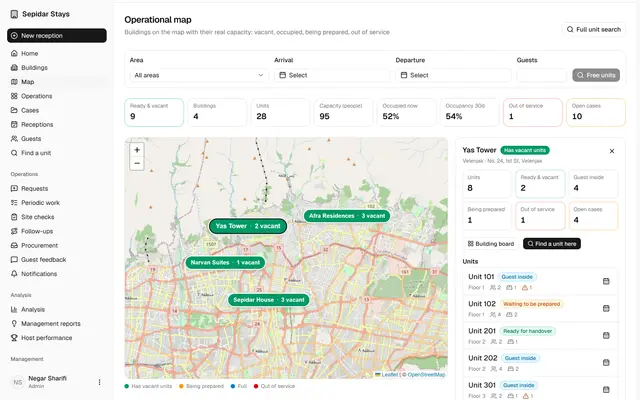
The operational map
Every building sits on the map with its real capacity, and one click leads to its board and unit calendars.
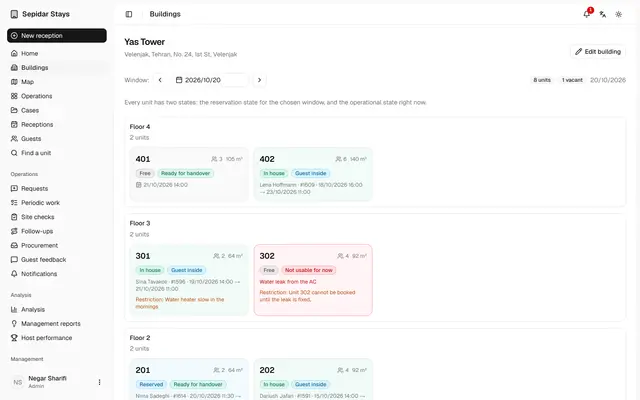
The building board
Management sees floor by floor which unit is occupied, vacant, being prepared or not usable for now.
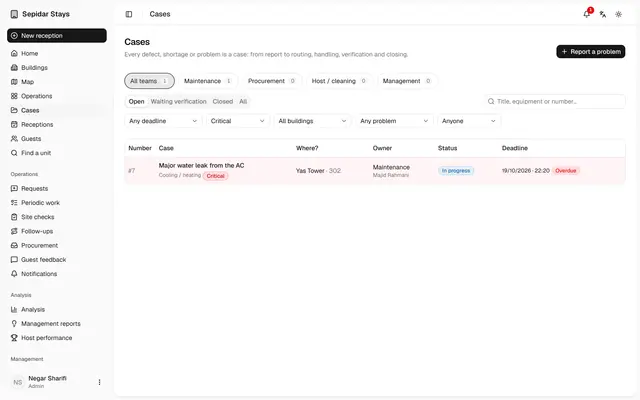
A critical case closes a unit
A critical fault takes the unit off sale until it is fixed, and everyone knows who owns the repair.
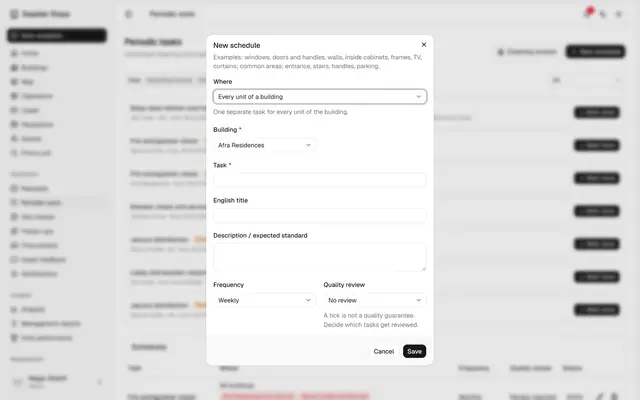
One periodic task for every building
Management defines the task once; each building gets its own share and its status is tracked separately.
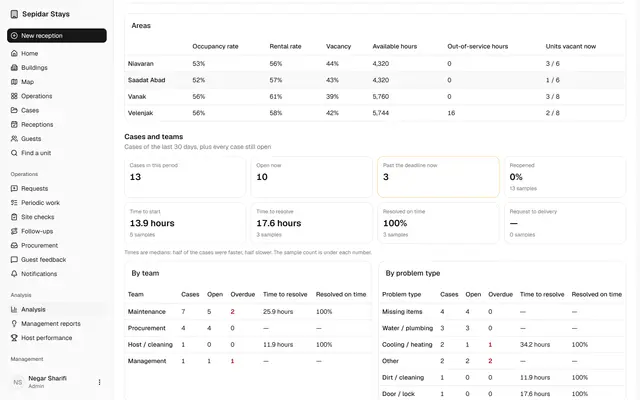
Cases and teams in numbers
Management sees how many cases each team holds, how long they take and how many close on time.
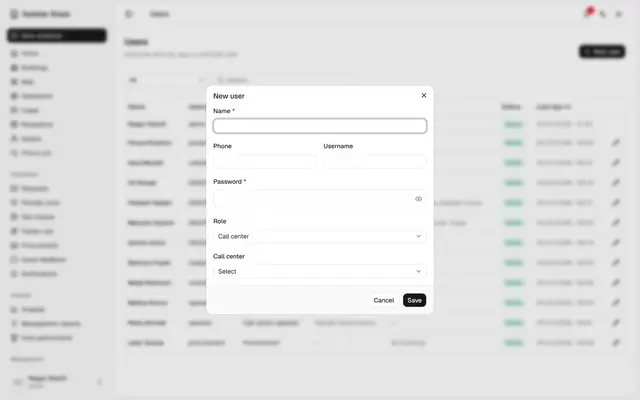
A maintenance user and their buildings
Each maintenance or procurement person only sees the work of the buildings they cover.
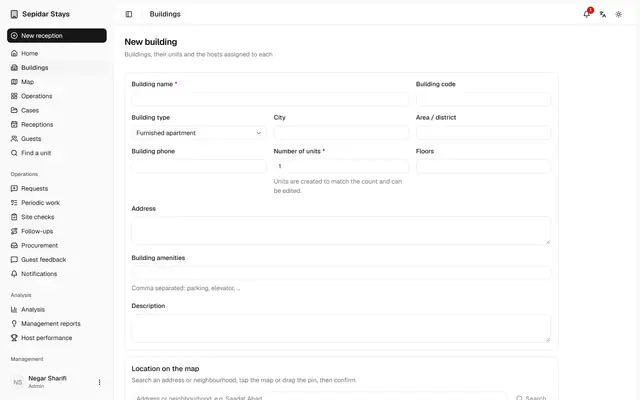
A new building on the map
A building is added with its units, its place on the map and the information guests need, on one page.
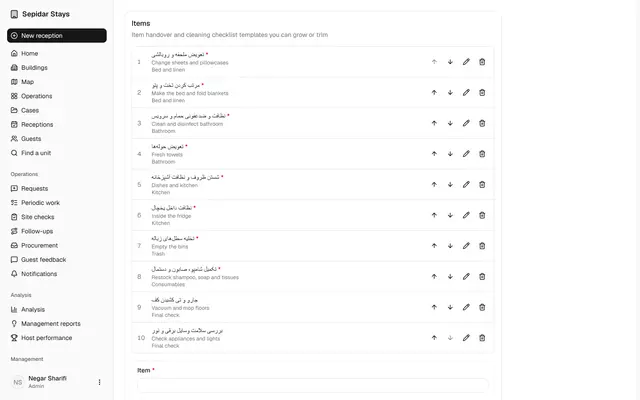
Cleaning checklist in six groups
Cleaning items fall into six big groups, so the host records a preparation with a few taps.
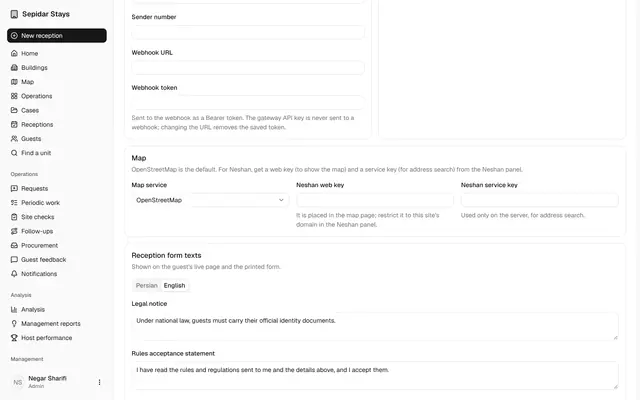
Guest rules and the map
Check-in requirements, the short rules before arrival, the full house rules and the map service are set on one page.
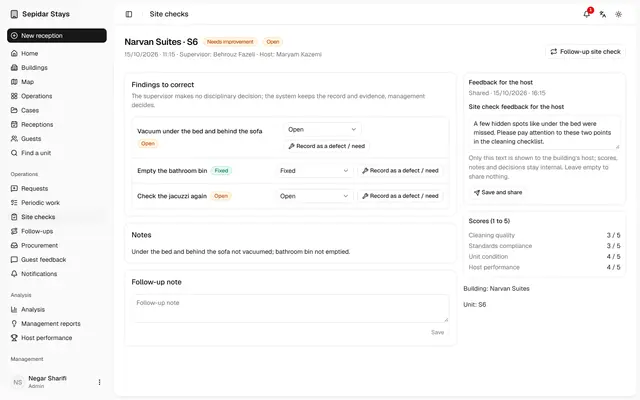
Share site check feedback
A site check becomes clear feedback for the host, while scores and internal notes stay private.
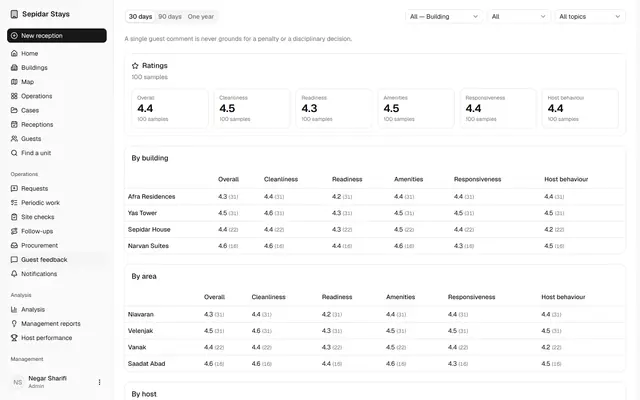
Guest feedback
Management reads guest scores by building and files each comment with a category and a note.
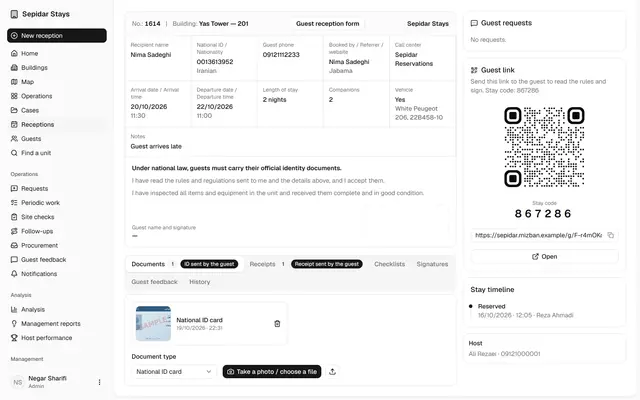
Verify a payment receipt
Receipts uploaded by guests are checked and verified, so no check-in waits on an unconfirmed payment.
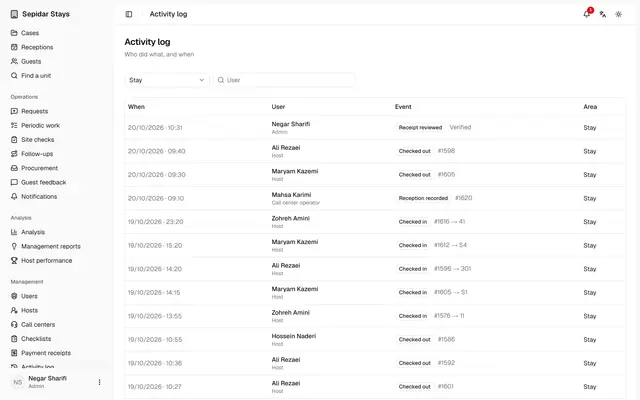
Activity log and notifications
Management sees who did what, and which texts and reminders were sent and with what status.
Call center
Owns the booking promise: finds the fastest suitable unit that is really ready for each customer, and decides on guest requests.
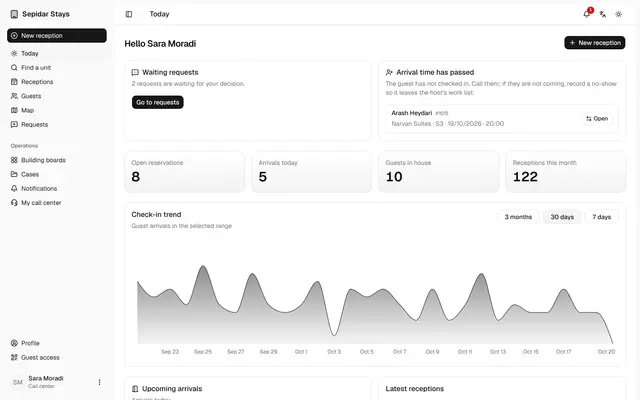
The call center's day
The call center starts each day with the work that needs a decision, so no guest request or overdue arrival is forgotten.
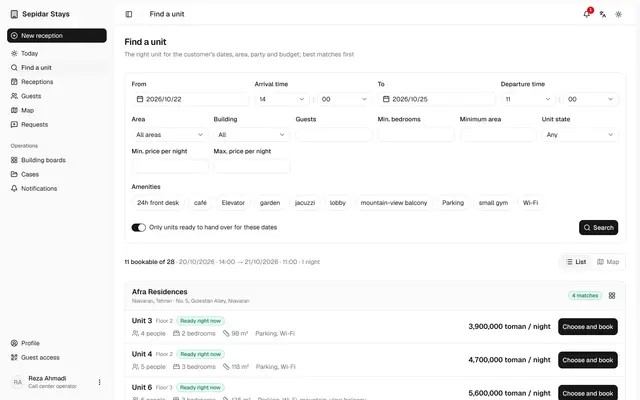
Find a unit and book
For the customer's dates, party and wishes, the operator sees only units that can be handed over and books on the spot.
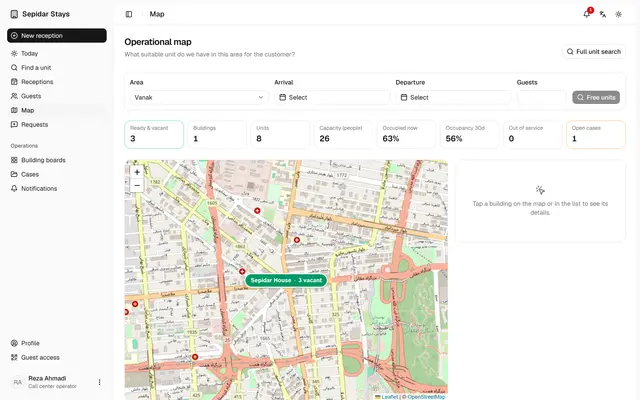
The map for a customer
On the map the operator sees how many units are free in the customer's chosen area for their dates and party.
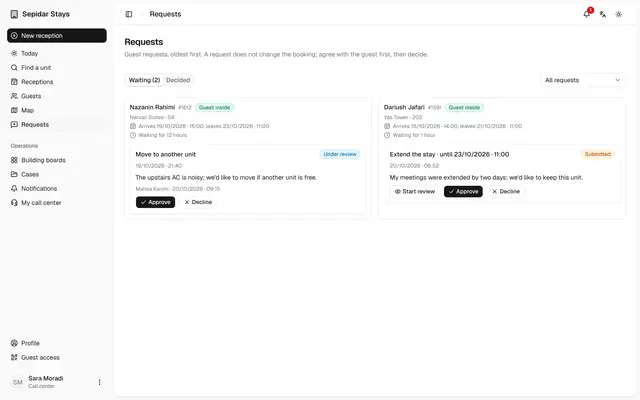
Approve an extension
A guest's extension is reviewed in one place, recorded with the new date and price, and the guest is told.
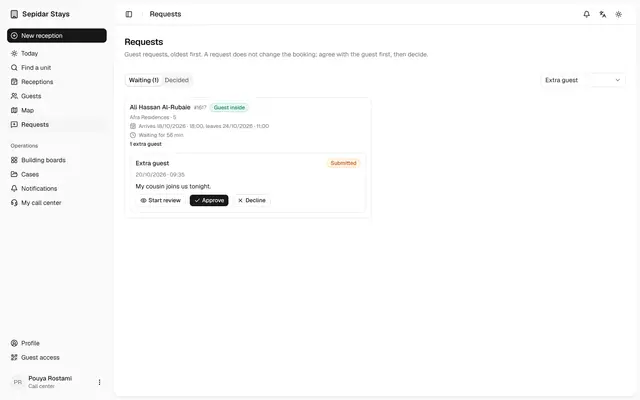
Deciding on an extra guest
An I have a guest request reaches the call center before the extra person arrives, so they are registered and charged.
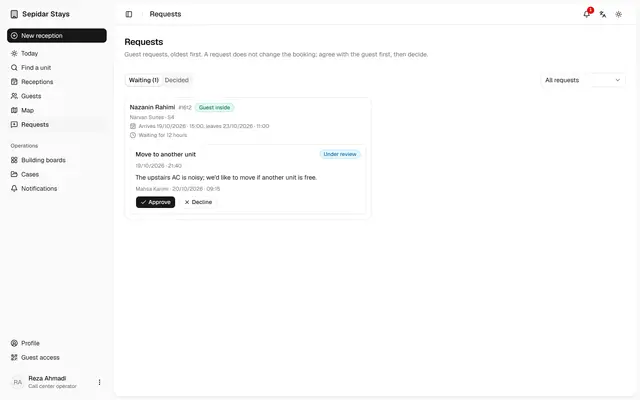
Decline a request with a reason
When a request is not possible, the guest gets a clear reason and the booking stays unchanged.
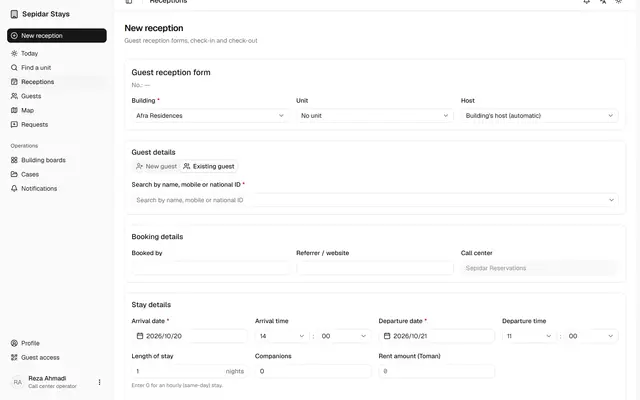
Booking for a returning guest
A returning guest's details are never typed twice, and a same-day hourly stay is booked with zero nights.
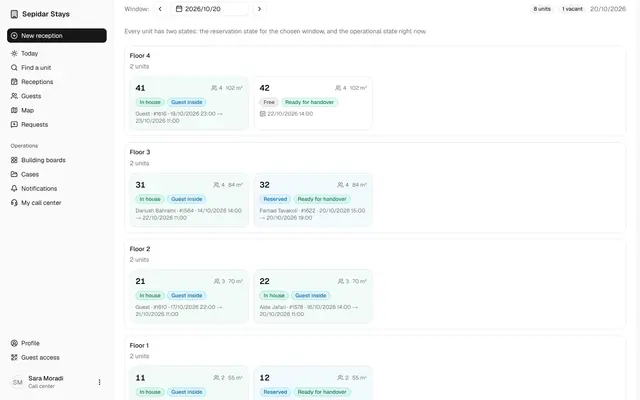
Building board and unit calendar
The call center sees every unit floor by floor and starts a booking straight from the unit calendar.
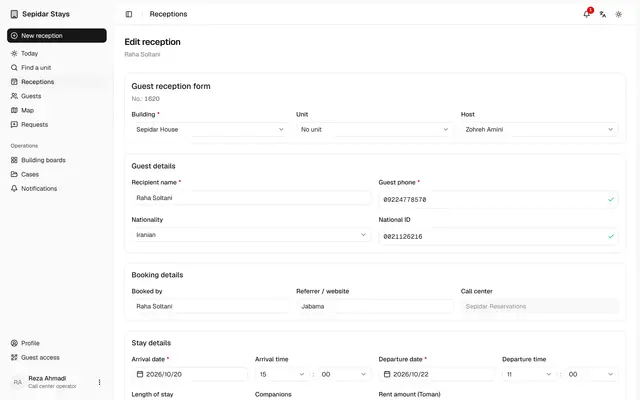
Assign a unit to a booking
A booking made without a unit gets one before the guest arrives, so the host knows which unit to prepare.
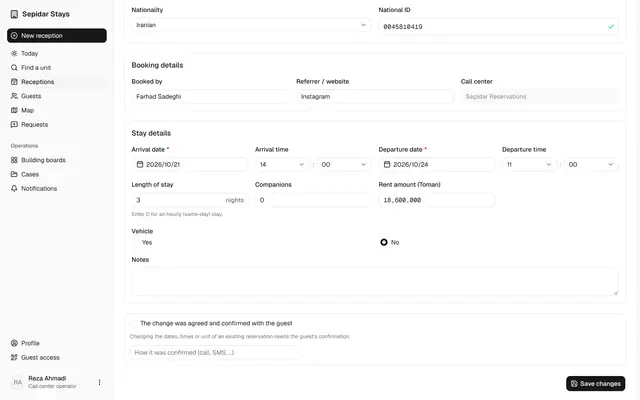
Edit and cancel bookings
Booking dates change only with the guest's recorded consent, and a cancellation is recorded after a clear confirmation.
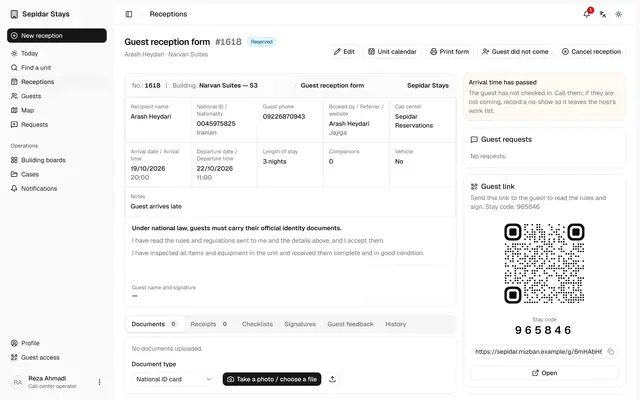
Record a no-show
A booking whose guest never came is closed, freeing the unit and clearing it from the host's work list.
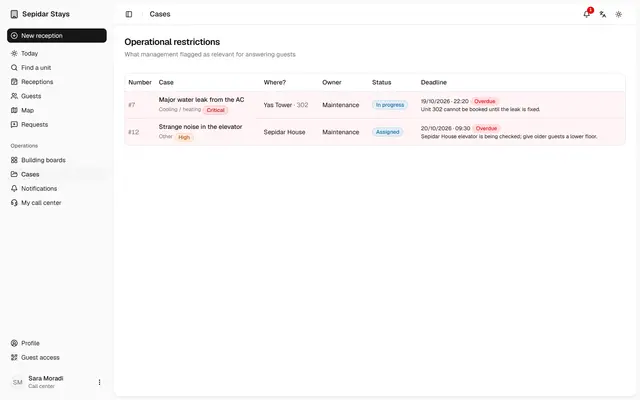
Operational restrictions
The call center sees only the cases management marked as relevant for answering guests.
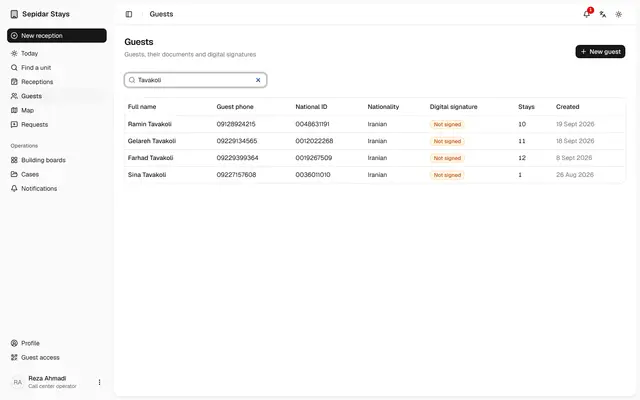
Guests and their stays
The operator finds a guest in seconds and sees all of their past and current stays.
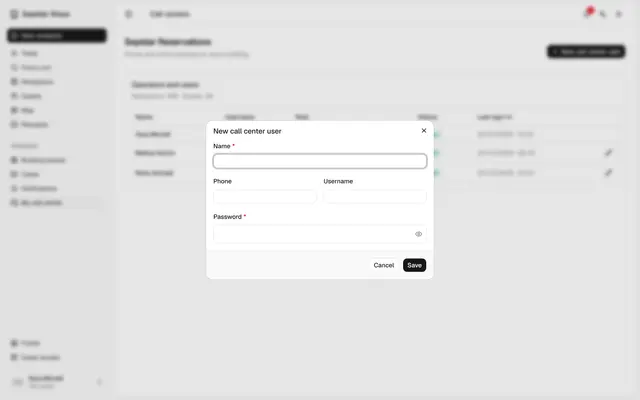
Add a call center operator
The call center manager creates an account for a new colleague without waiting for management.
Host
Runs the building day on a phone; the screen shows the next action, never the structure of the system.
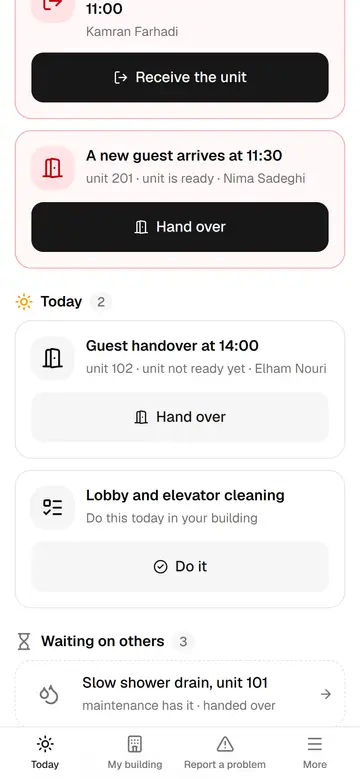
The host's day at a glance
The host only sees what to do now: urgent, today, waiting on others and done today.
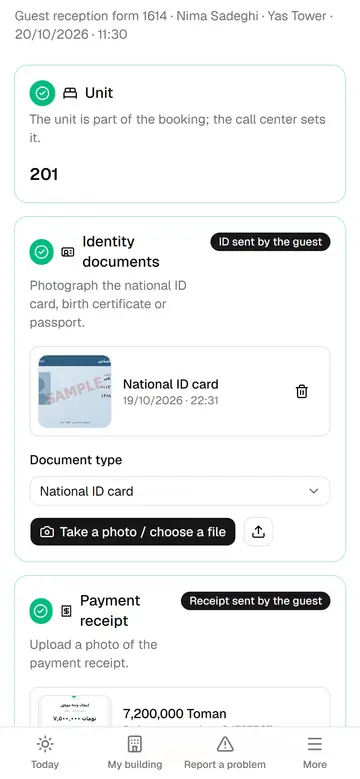
Check a guest in
The guest sent the documents in online pre-check-in; the host ticks the items, the guest signs and the check-in is done.
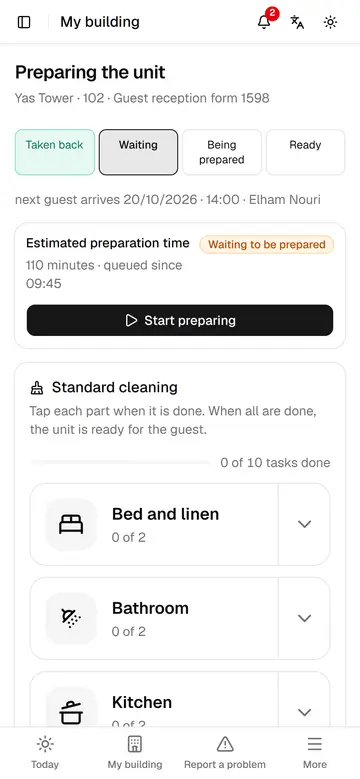
Prepare a unit in six parts
Unit 102 is prepared with six big tiles before Elham arrives, and everyone sees when it is ready.
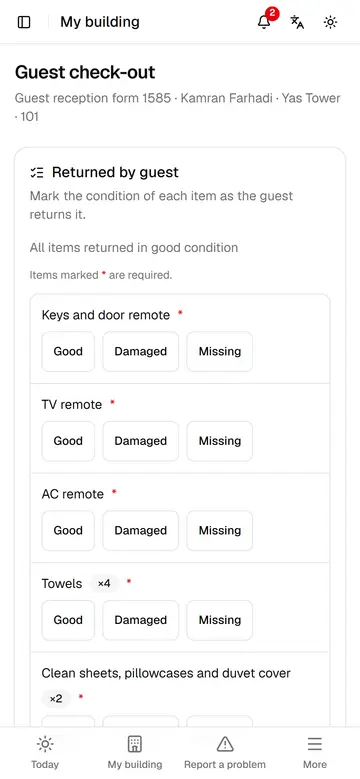
Check a guest out
The host records the state of each item, the guest signs, and the unit goes straight to preparation.
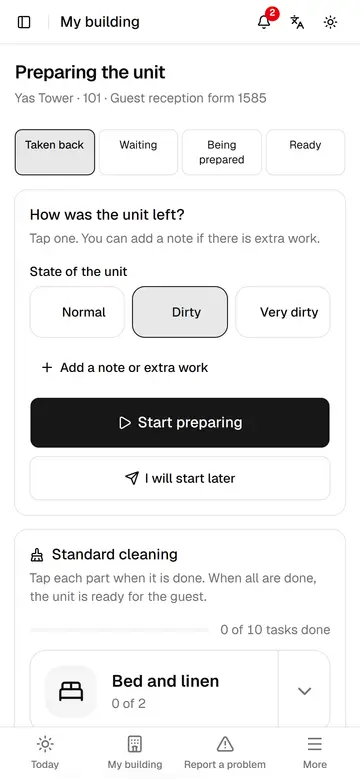
Note how the unit was left
With one tap the host says how the unit was left, so the preparation time is estimated better.
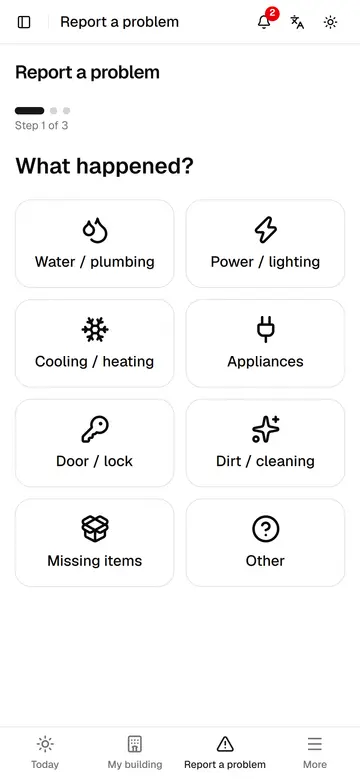
Report a problem in three steps
Without typing, the host says what happened and where and sends a photo; the system picks the route and owner.
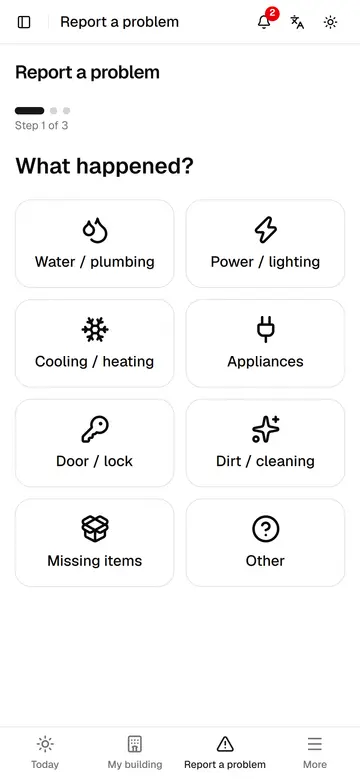
Report missing supplies
The host sends the missing supplies with a count for each, and the request goes straight to procurement.
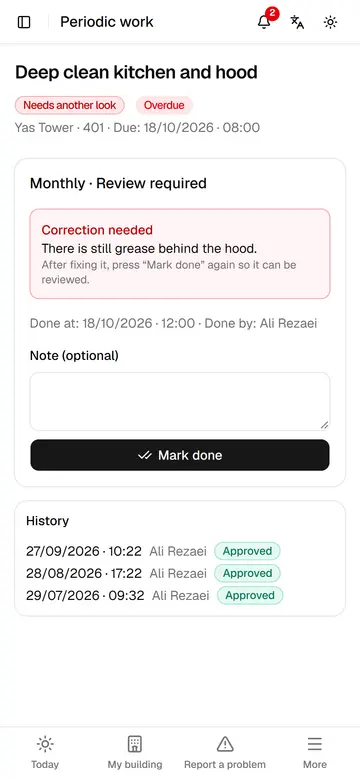
Periodic tasks and corrections
The host fixes a task the supervisor sent back and records today's periodic task with one tap.
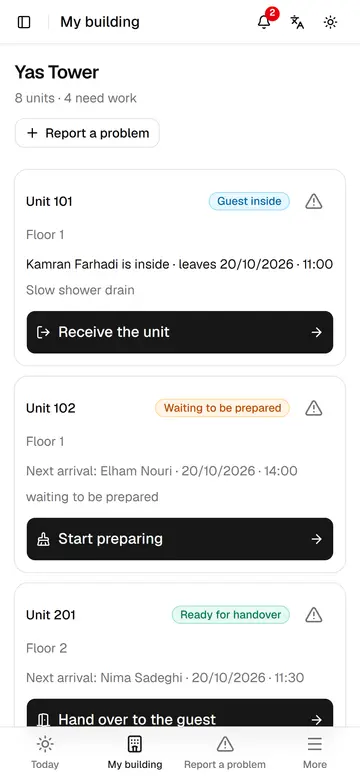
My building
The host sees every unit's state, who is inside and the next step on one page.
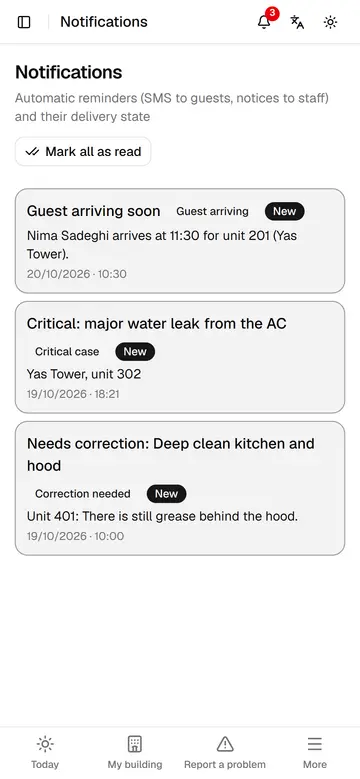
The host's new messages
Upcoming arrivals, urgent cases and returned tasks arrive as notifications, each opened with one tap.
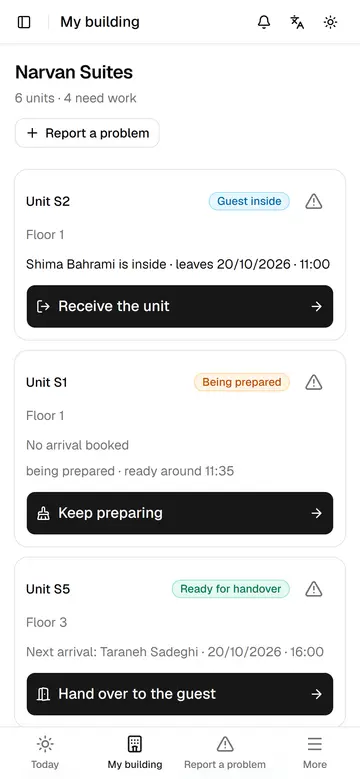
Site check feedback for the host
Points management shares from site checks appear on the host's My building page.
Supervisor
Sees what needs checking, who should do it and what is still open; disciplinary decisions stay with management.
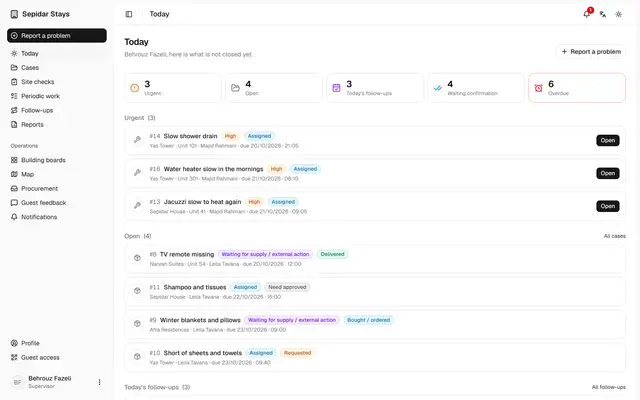
The supervisor's day
On one page the supervisor sees what is urgent, what waits for their confirmation and what is past its deadline.
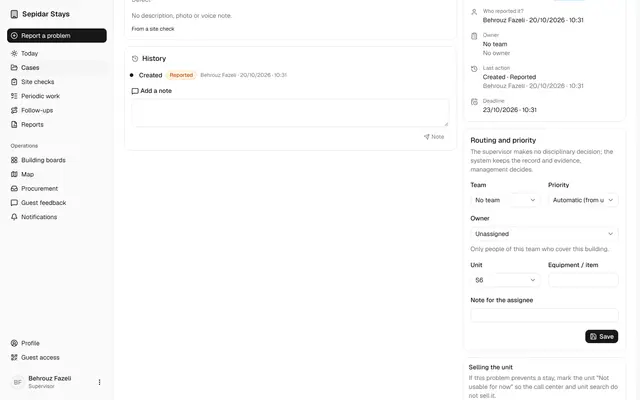
Route a case to a team
The supervisor sets the team, priority and owner of a new case, so no problem is left without an owner.
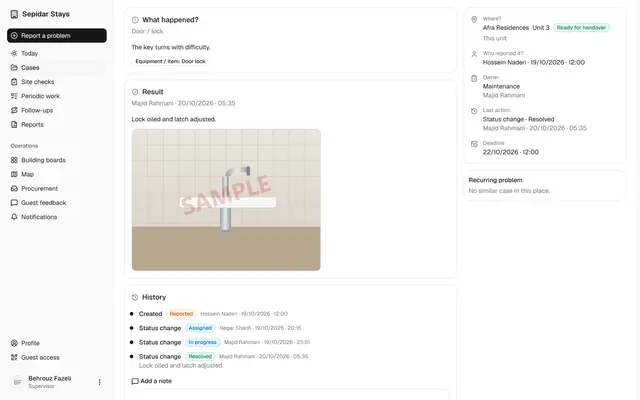
Verify a repair
The supervisor checks the repair photo and verifies or reopens the case, so no repair is closed unchecked.
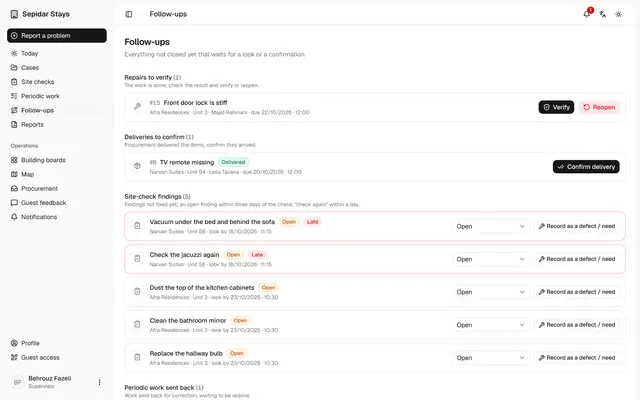
Open follow-ups
Everything not closed yet is on one list, so fewer phone chases and fewer forgotten jobs.
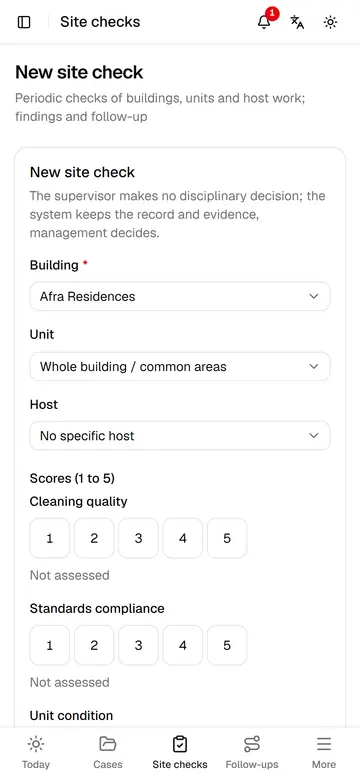
A site check on the phone
During a site check the supervisor records scores, the result and the findings to fix, so follow-up starts at once.
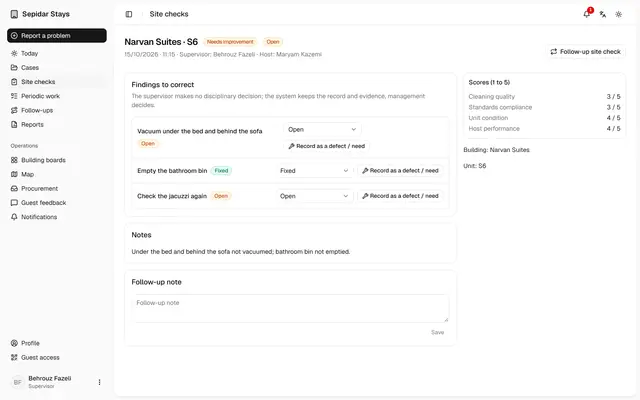
Follow up site check findings
The supervisor updates each finding and turns a lingering one into a case, so nothing is forgotten.
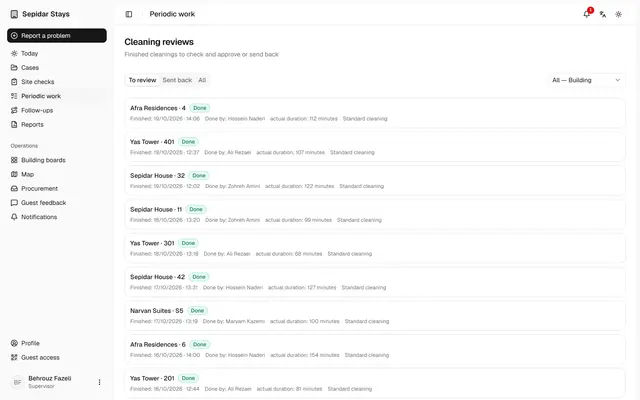
Review finished cleanings
The supervisor checks finished cleanings against their checklist, approves good work and sends incomplete work back with a reason.
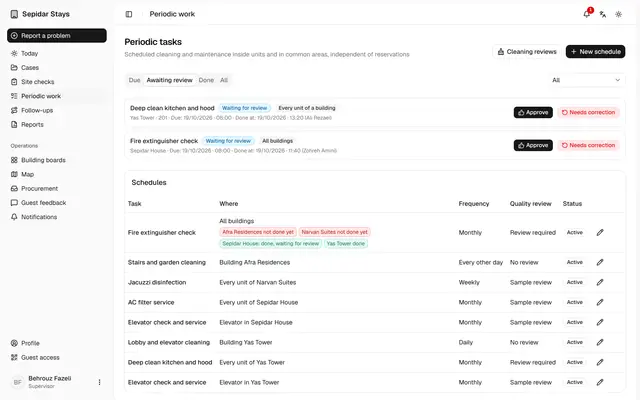
Review periodic tasks
The supervisor approves finished periodic work or sends it back with a reason, so a tick never replaces quality.
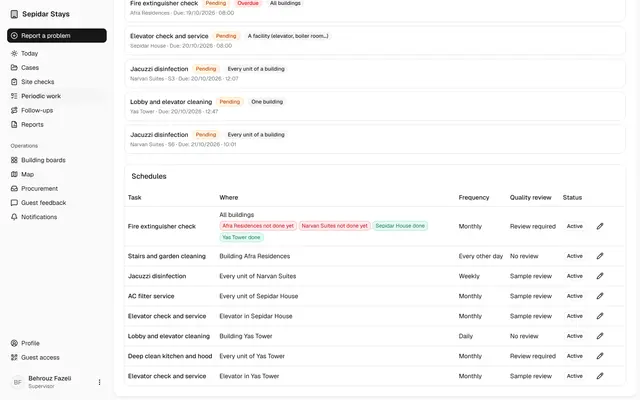
One periodic task, every building
One rule covers every building, yet each building has its own status, and one done never closes another.
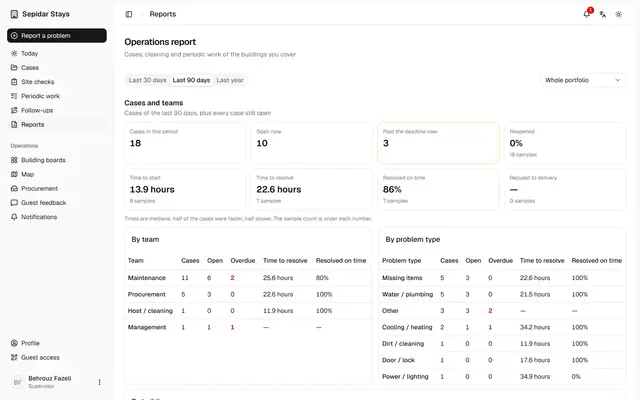
The supervisor's operations report
The supervisor sees how fast cases, cleaning and periodic work move, without the money figures kept for management.
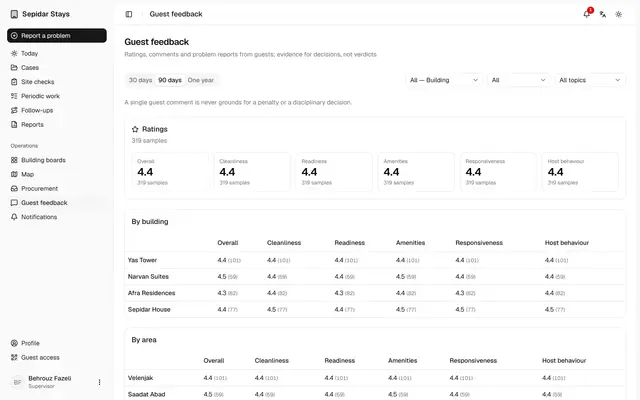
Guest feedback for the supervisor
The supervisor sees guest ratings and comments by building and unit, and files each comment for the next site check.
Maintenance
Gets real defects from one clear queue and closes them with "Start repair" and "Fixed"; sees no bookings or management reports.
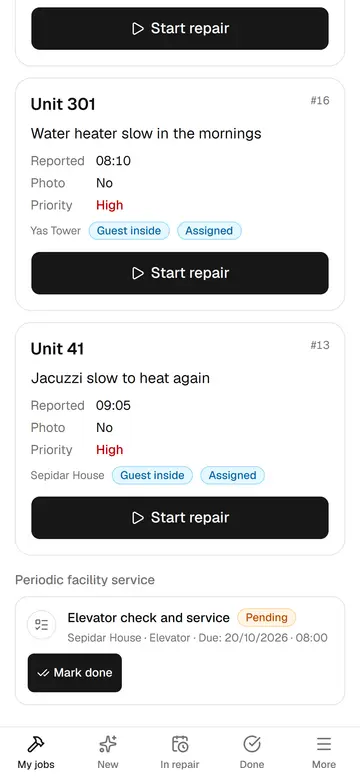
Maintenance: my jobs
The repairer sees only his own jobs, urgent and late ones first, with no bookings or management reports.
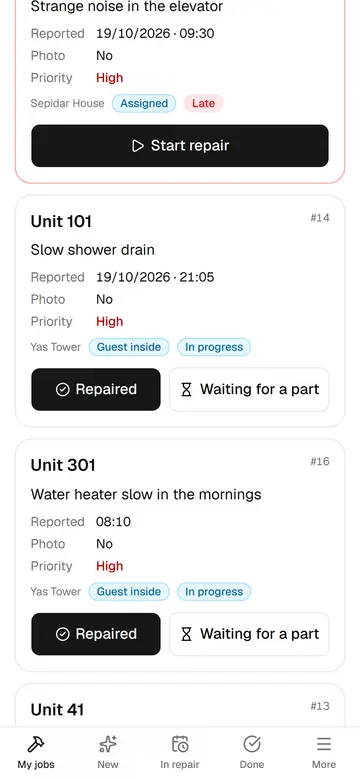
From start to repaired
Two buttons move the job, and a photo of the result sends the case to the supervisor for checking.
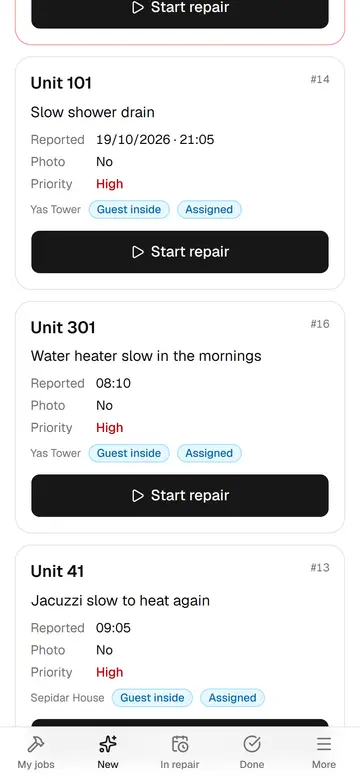
Take a new breakdown
The guest reported the slow water heater from his phone; the repairer reads the details and starts the job.
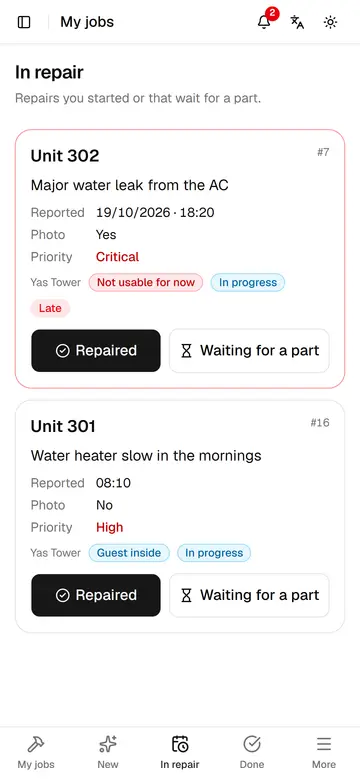
Waiting for a part
When a repair needs a part, the repairer writes why, and everyone sees what the case is waiting for.
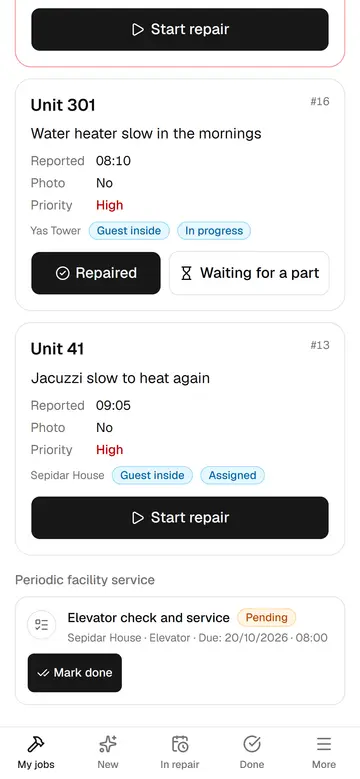
The periodic elevator service
Facility periodic tasks, like the monthly elevator service, sit beside the repairs and are recorded with one tap.
Procurement
Works with requests, not raw reports: confirms the need, takes from stock or buys, and follows through to delivery and confirmation.
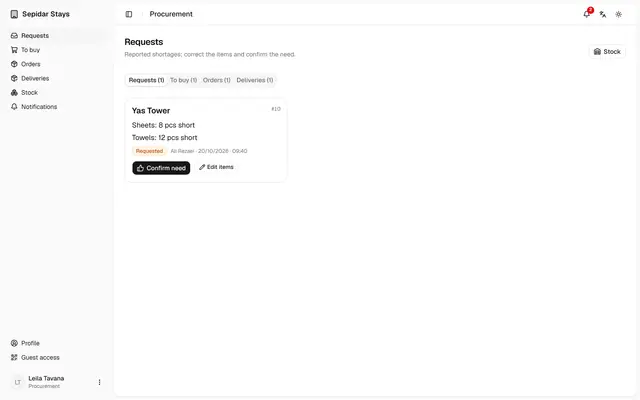
Confirm a building's need
Procurement works with requests, not raw reports: it sees each missing item, corrects the lines and confirms the need.
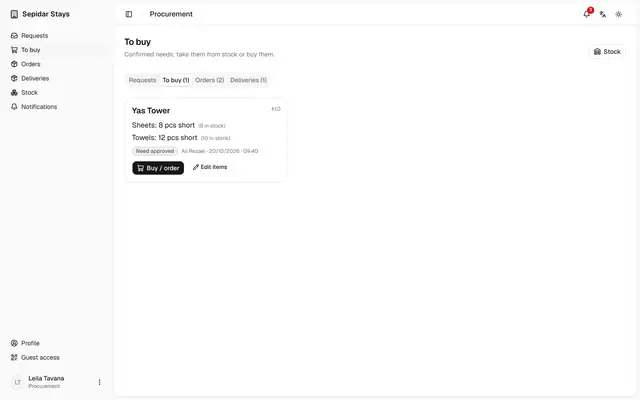
Buy or order the items
When stock is not enough, procurement records the purchase, so the building knows it is coming and every purchase leaves a trace.
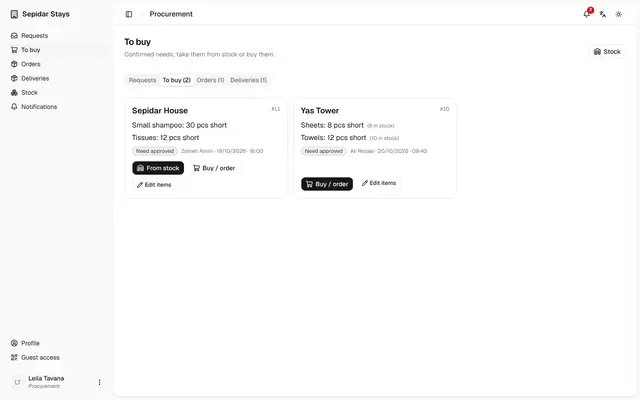
Take items from stock
When the shelf has enough, one button issues the items and the stock count drops by itself.
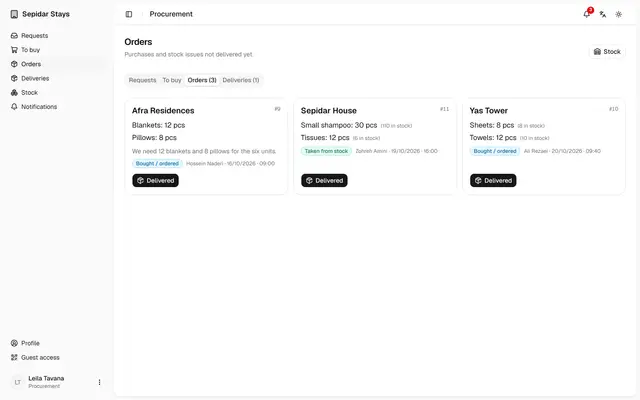
Delivery and the building's confirmation
Procurement records the delivery and then sees the building's host confirm it and the case close.
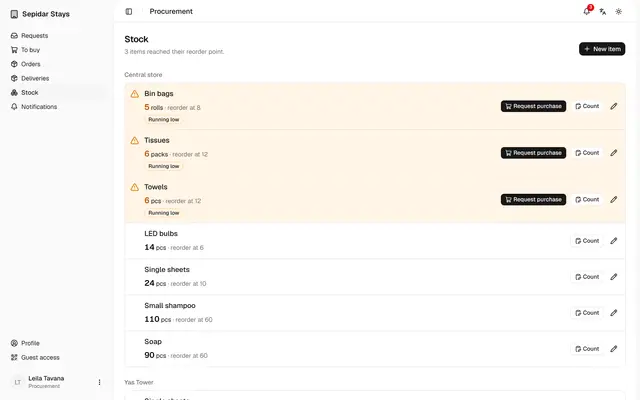
Stock and reorder points
Items at their reorder point rise to the top, and one purchase request refills them before they run out.
Guest
No app to install: a QR code or text opens the stay companion for pre-check-in, directions, unit details, rules and requests.
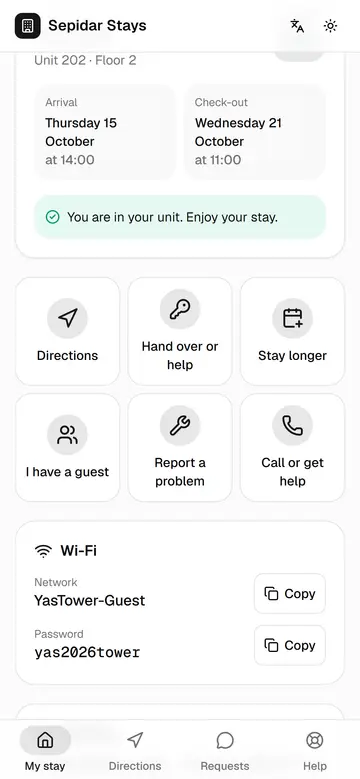
The guest's stay companion
The guest has the whole stay on their own phone, from the unit and Wi-Fi to requests and calls, with no app to install.
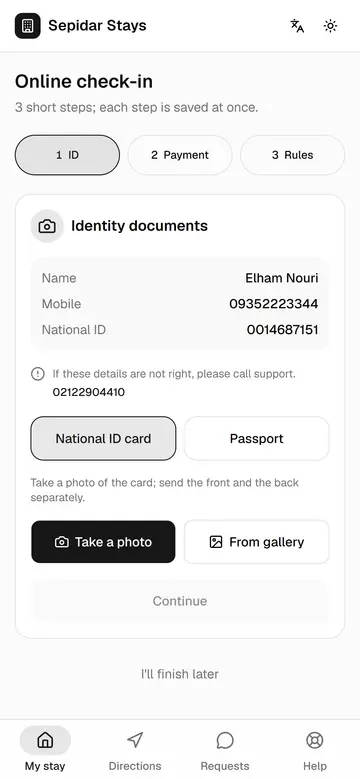
Online pre-check-in
The guest sends ID and a payment receipt and accepts the rules before arriving, so only the handover and signature remain.
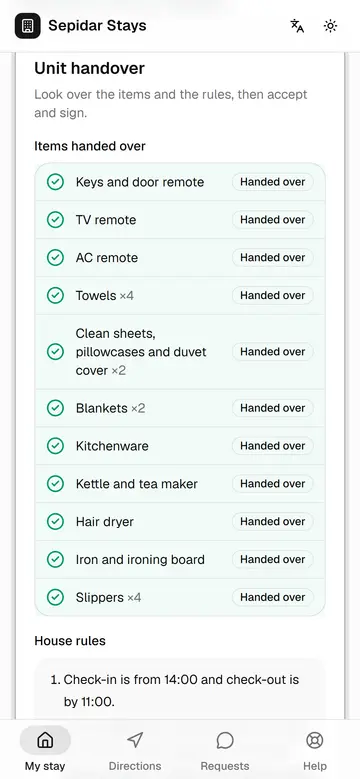
Signing the handover
The guest sees the handed-over items live on their own phone and accepts with a real signature, without paper.
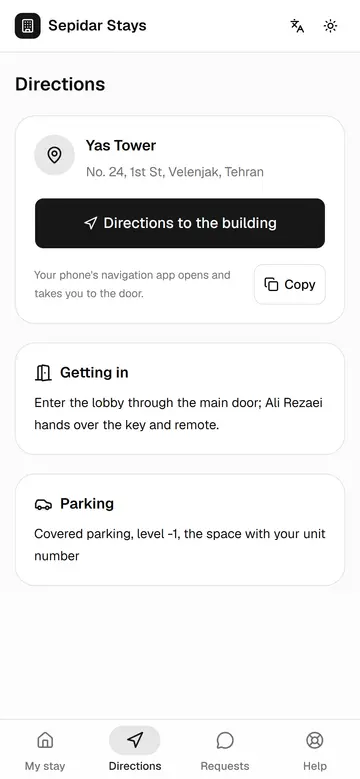
Directions to the building
The guest reaches the door with their own navigation app and calls less to ask for the address.
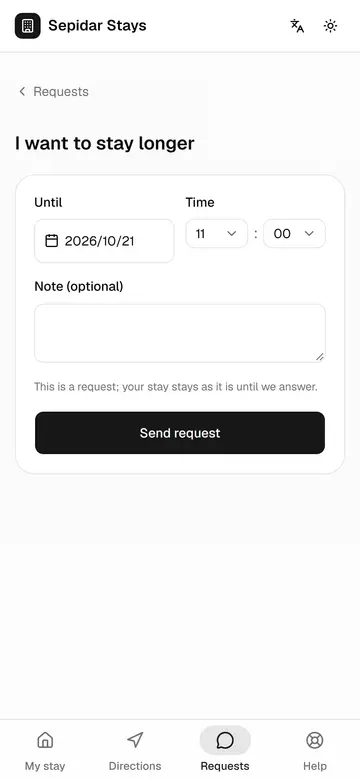
Asking to stay longer
The guest asks for an extension with an exact date, and the call center decides without calls or guesswork.
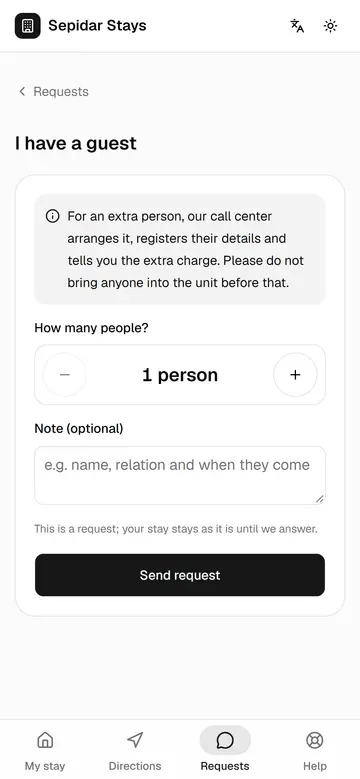
I have a guest
The guest tells us before bringing someone in, and the call center registers the extra person and the charge.
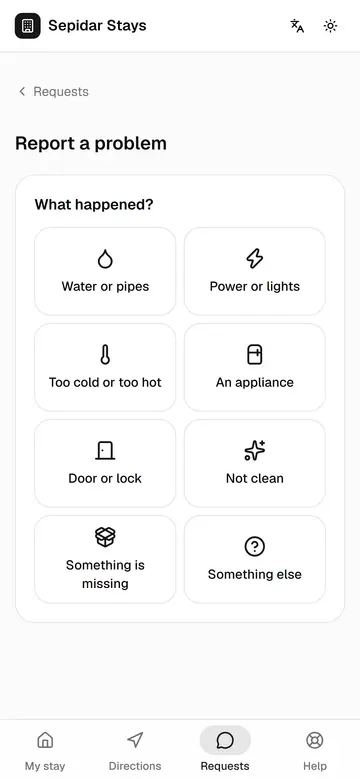
Reporting a problem
The guest reports a problem in two steps with a photo, and the case goes straight to the right team.
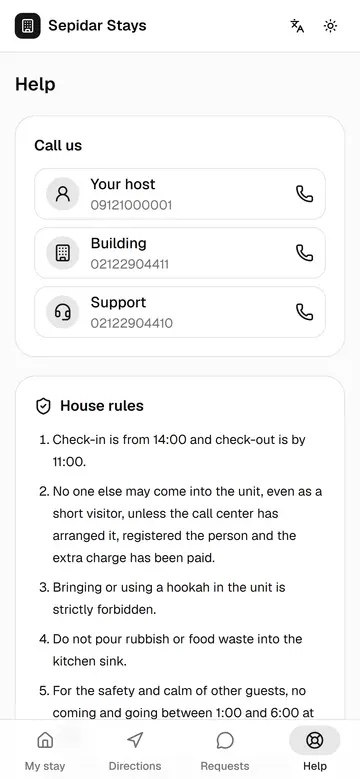
The rules during the stay
The house rules and the signed reception form stay on the guest's phone, so there are fewer misunderstandings.
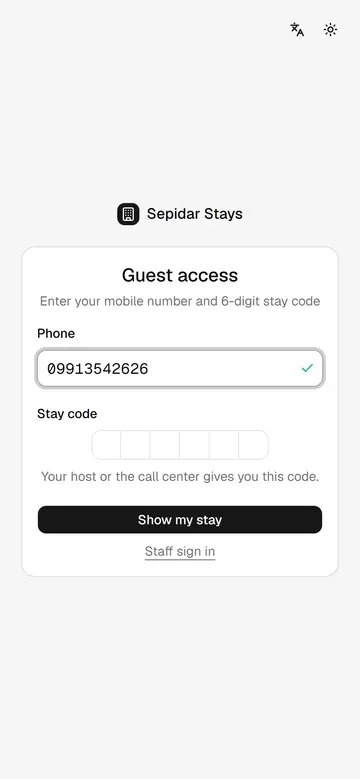
Signing in with the stay code
If the guest loses the link, their mobile number and the six-digit stay code bring the page back.
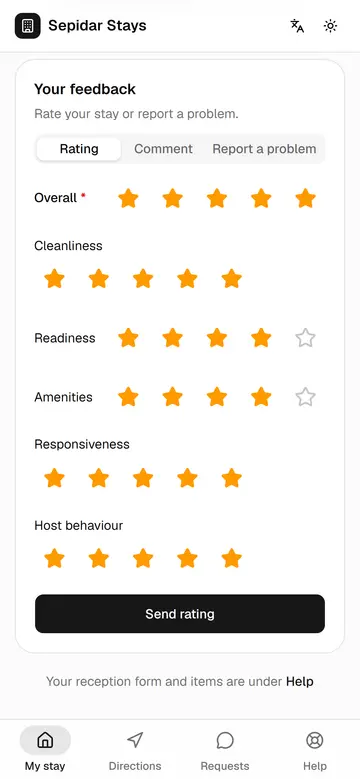
Feedback after the stay
After check-out the guest rates the stay and comments, so management can measure each building and host.