Skip to content
Mizban

One periodic task for every building

Management defines the task once; each building gets its own share and its status is tracked separately.

ManagementOn a computer7 steps
Due tasks are at the top; for a new one, click New schedule.Set the scope to All buildings, so each building gets its own task.Type the task title and describe exactly what must be done.Set the frequency to monthly so it repeats by itself every month.Make the quality review required, so the supervisor confirms every run.Click Save to activate the schedule for every building.In the schedules table each building shows whether its share is done yet.

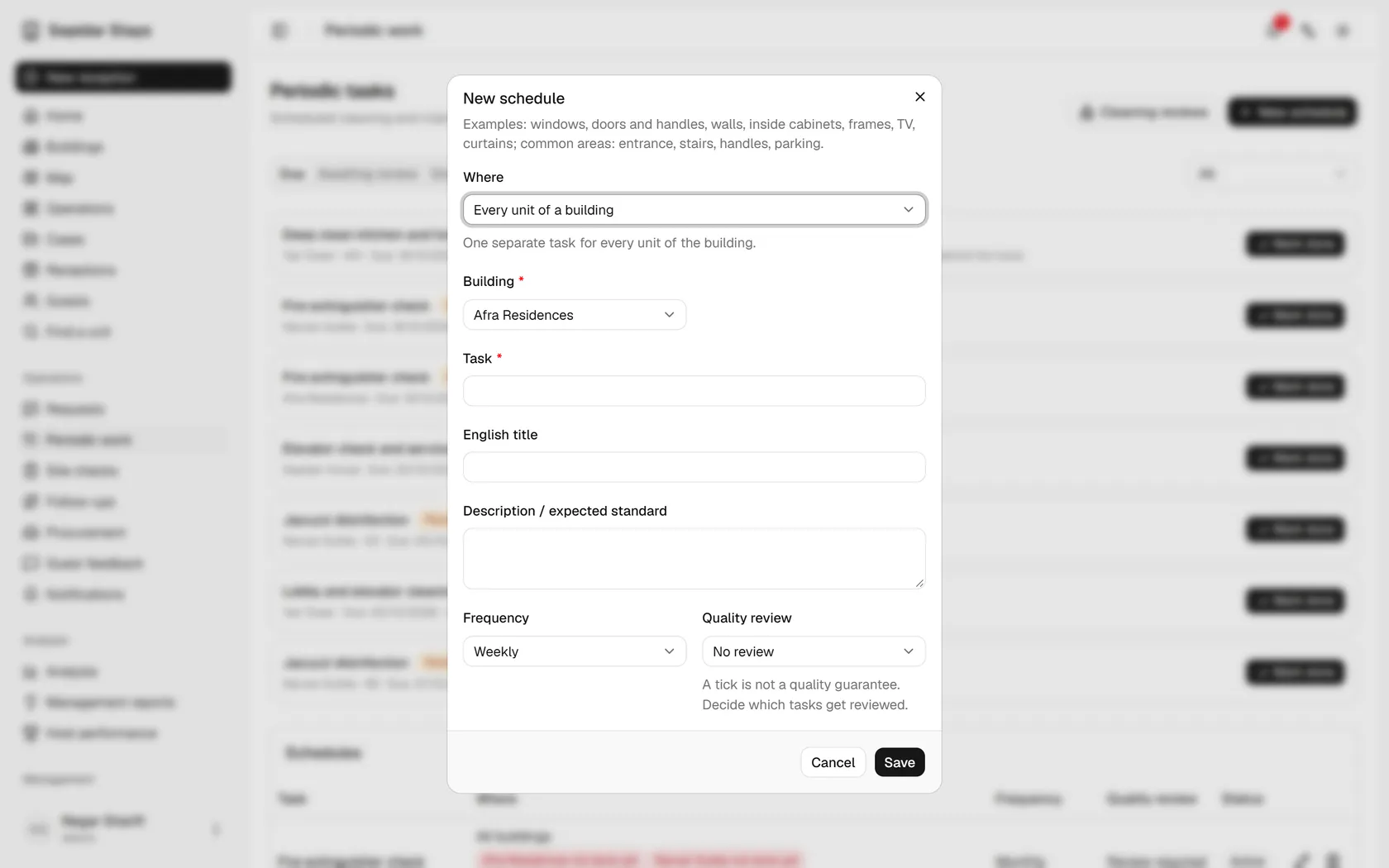
Due tasks are at the top; for a new one, click New schedule.

Step by step

  1. 1

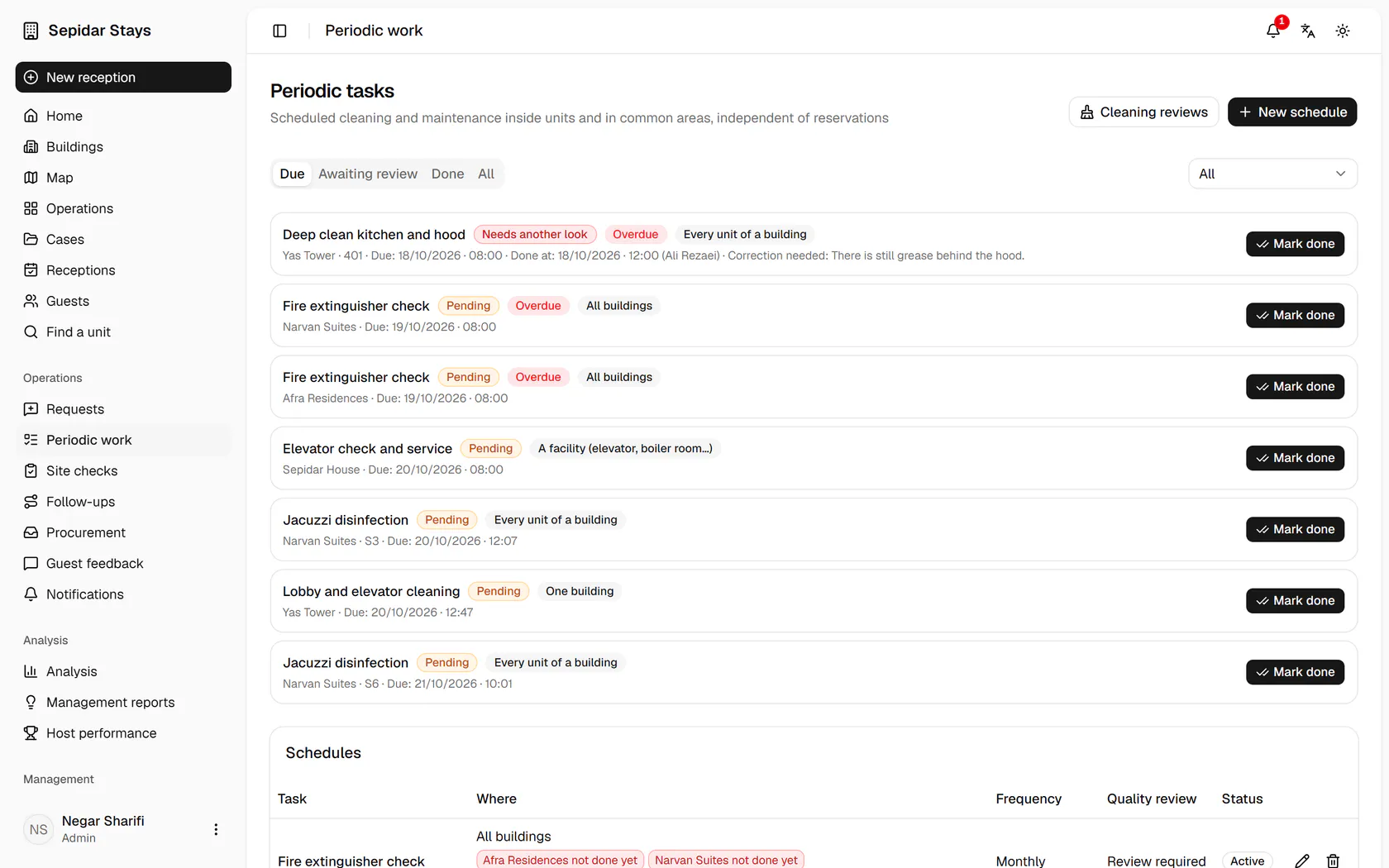
    Due tasks are at the top; for a new one, click New schedule.

    Due tasks are at the top; for a new one, click New schedule.
  2. 2

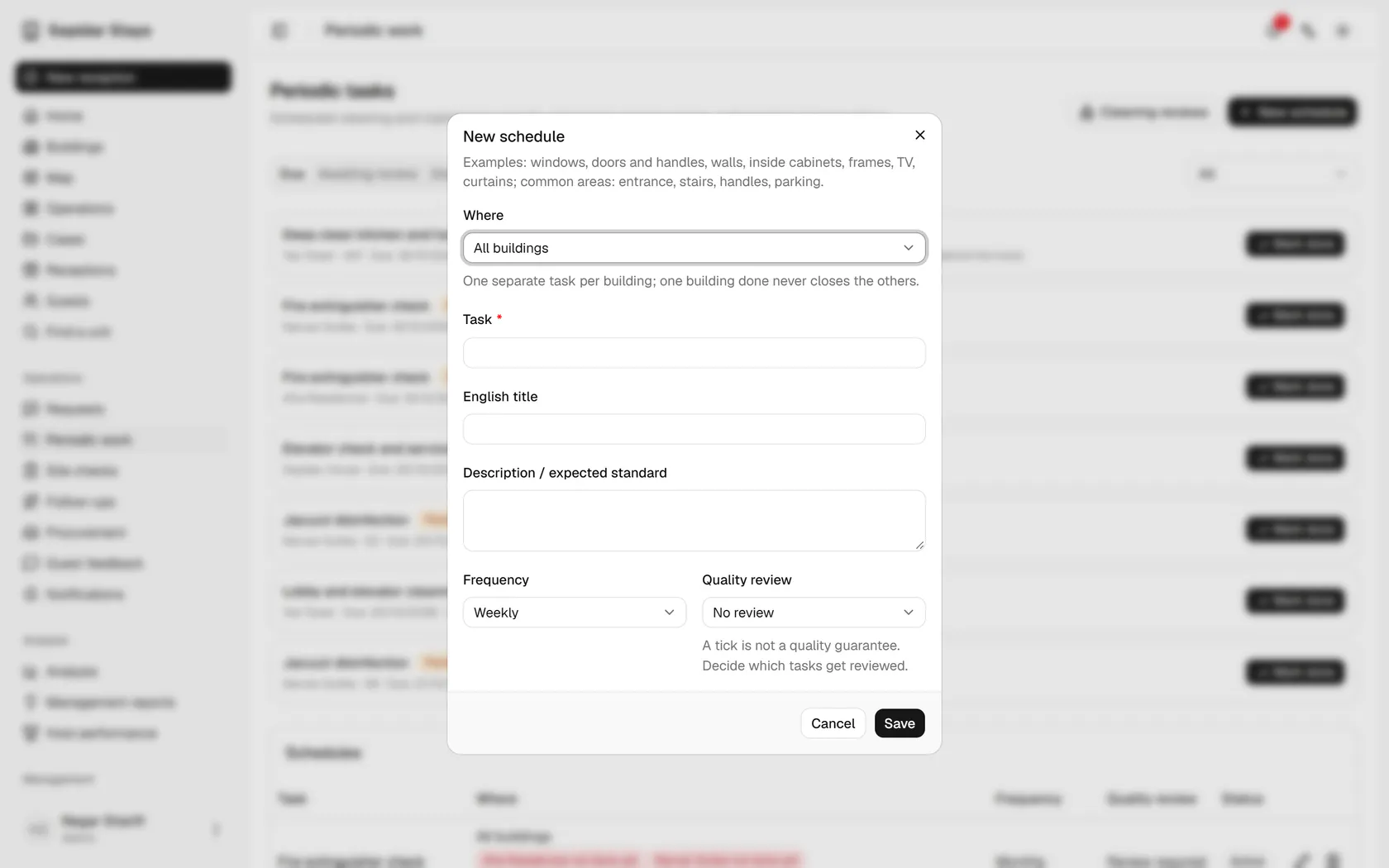
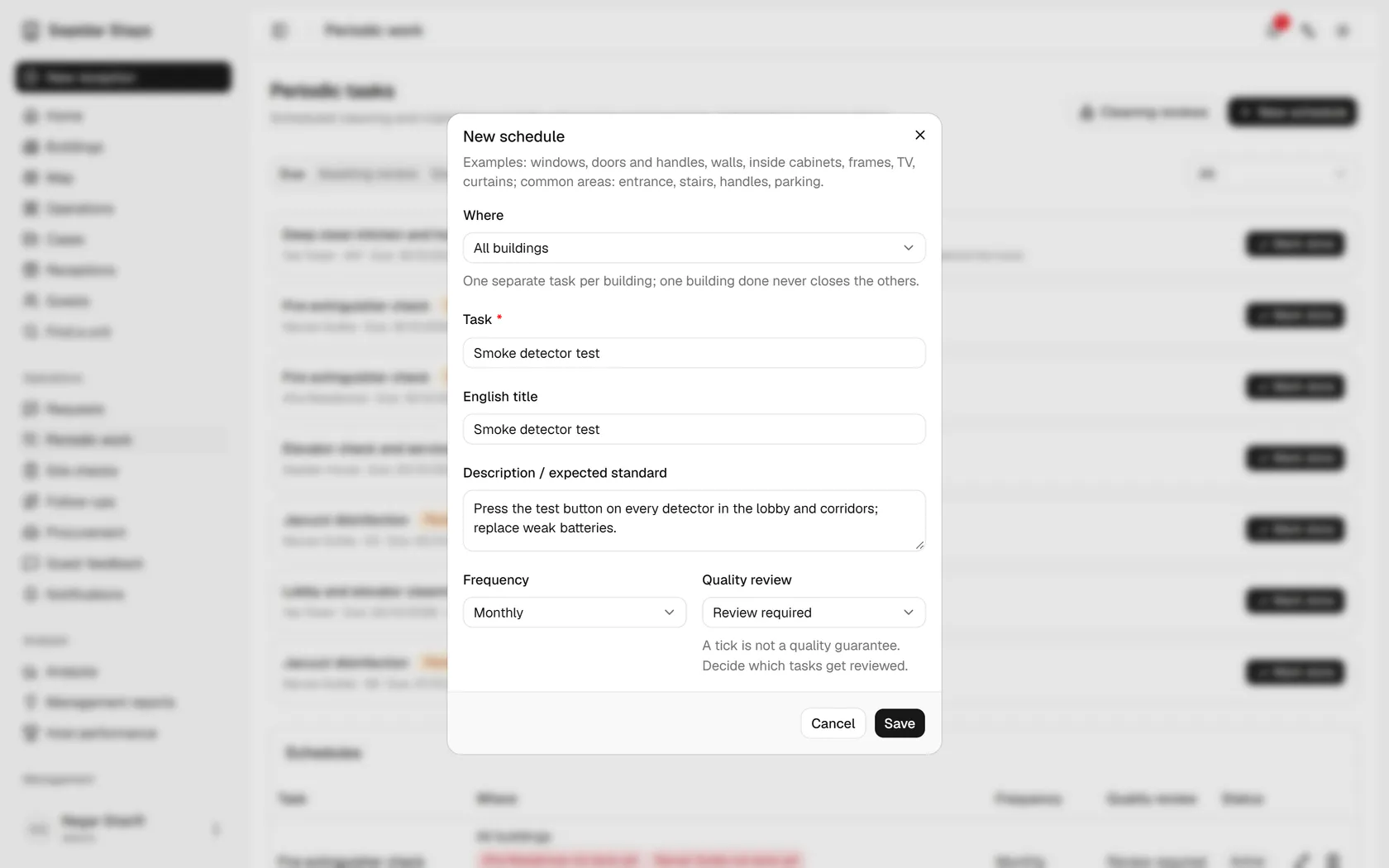
    Set the scope to All buildings, so each building gets its own task.

    Set the scope to All buildings, so each building gets its own task.
  3. 3

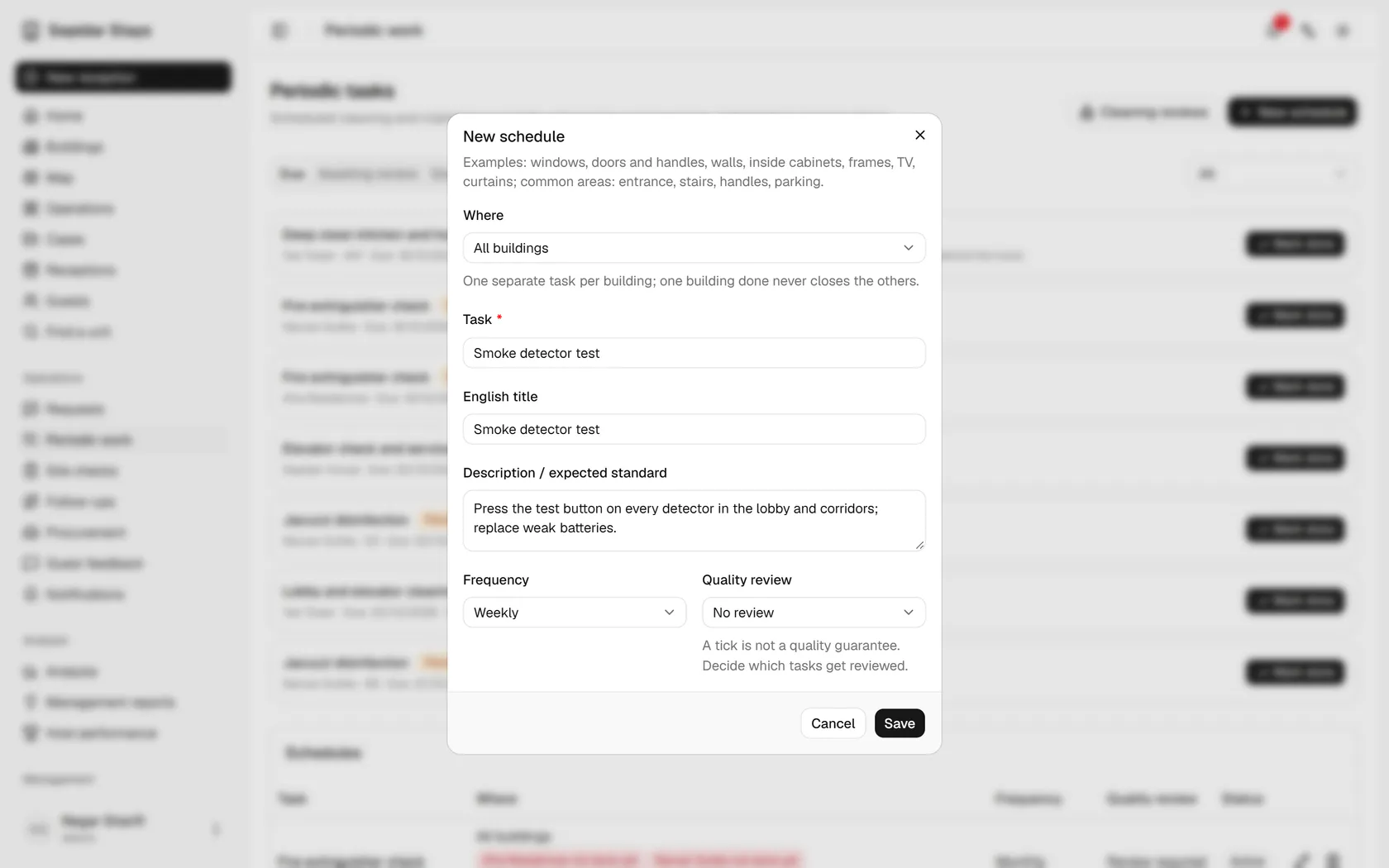
    Type the task title and describe exactly what must be done.

    Type the task title and describe exactly what must be done.
  4. 4

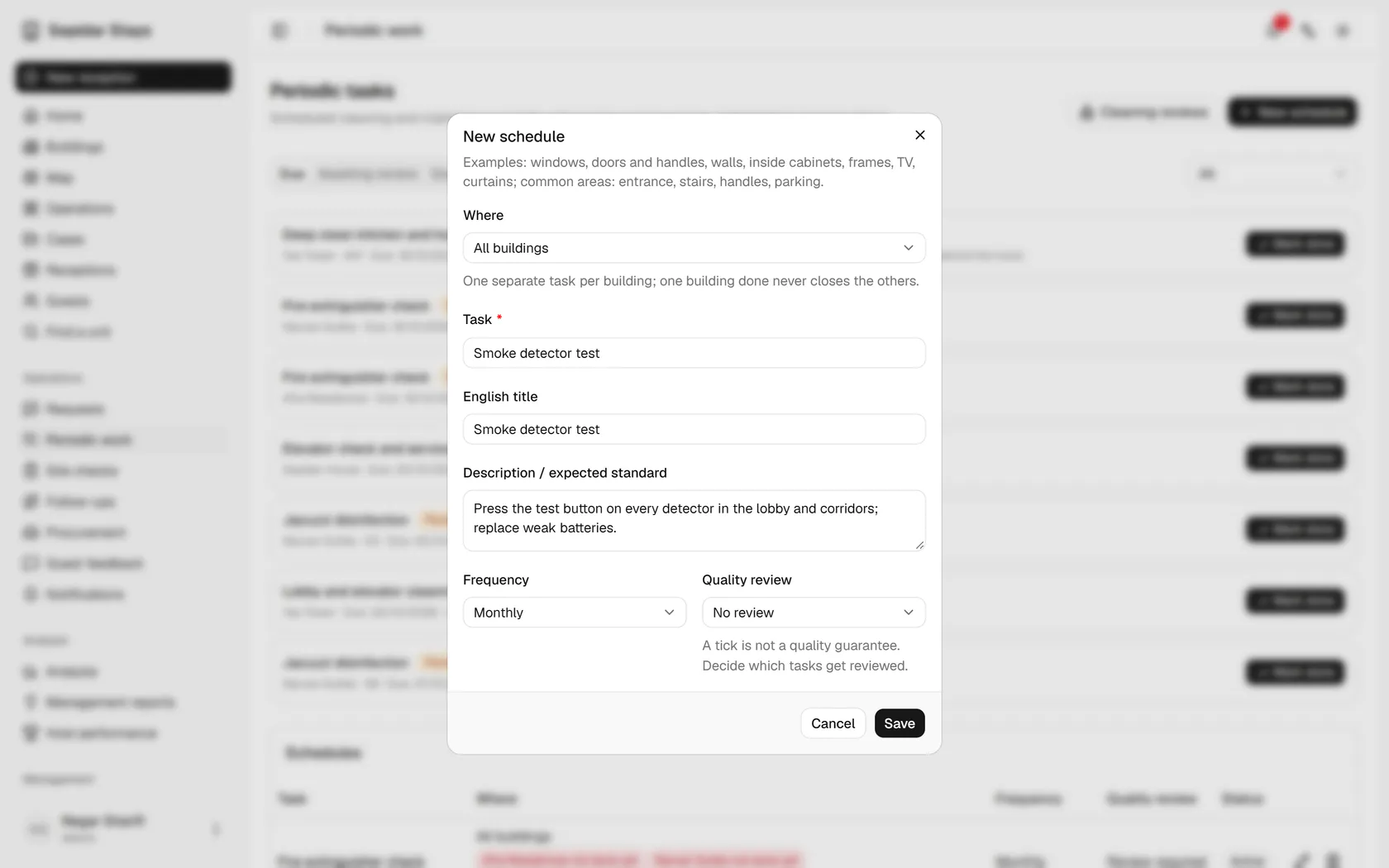
    Set the frequency to monthly so it repeats by itself every month.

    Set the frequency to monthly so it repeats by itself every month.
  5. 5

    Make the quality review required, so the supervisor confirms every run.

    Make the quality review required, so the supervisor confirms every run.
  6. 6

    Click Save to activate the schedule for every building.

    Click Save to activate the schedule for every building.
  7. 7

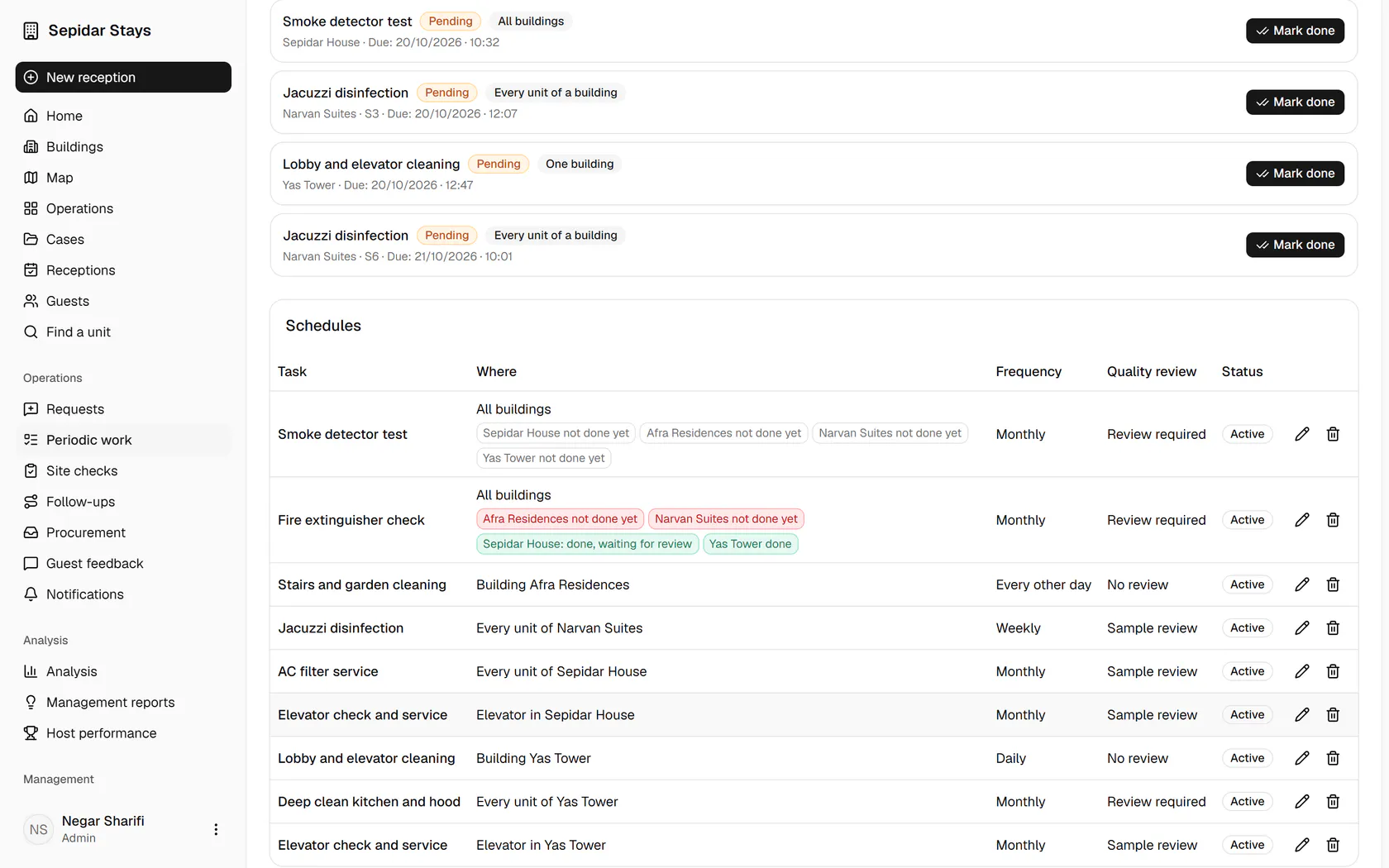
    In the schedules table each building shows whether its share is done yet.

    In the schedules table each building shows whether its share is done yet.