Skip to content
Mizban

A new building on the map

A building is added with its units, its place on the map and the information guests need, on one page.

ManagementOn a computer8 steps
In Buildings, click New building to start a new one.Type the building name, then fill in type, city, number of units and address.To place it on the map, search the neighbourhood; no coordinates to type.Pick the right result; the map moves there and drops a pin.Drag the pin if needed, then click Confirm location.Add Wi-Fi, parking and entry guide; guests see exactly these in their stay companion.Tick the building's host and click Save.The building is created with its units, and it now appears on the operational map.

In Buildings, click New building to start a new one.

Step by step

  1. 1

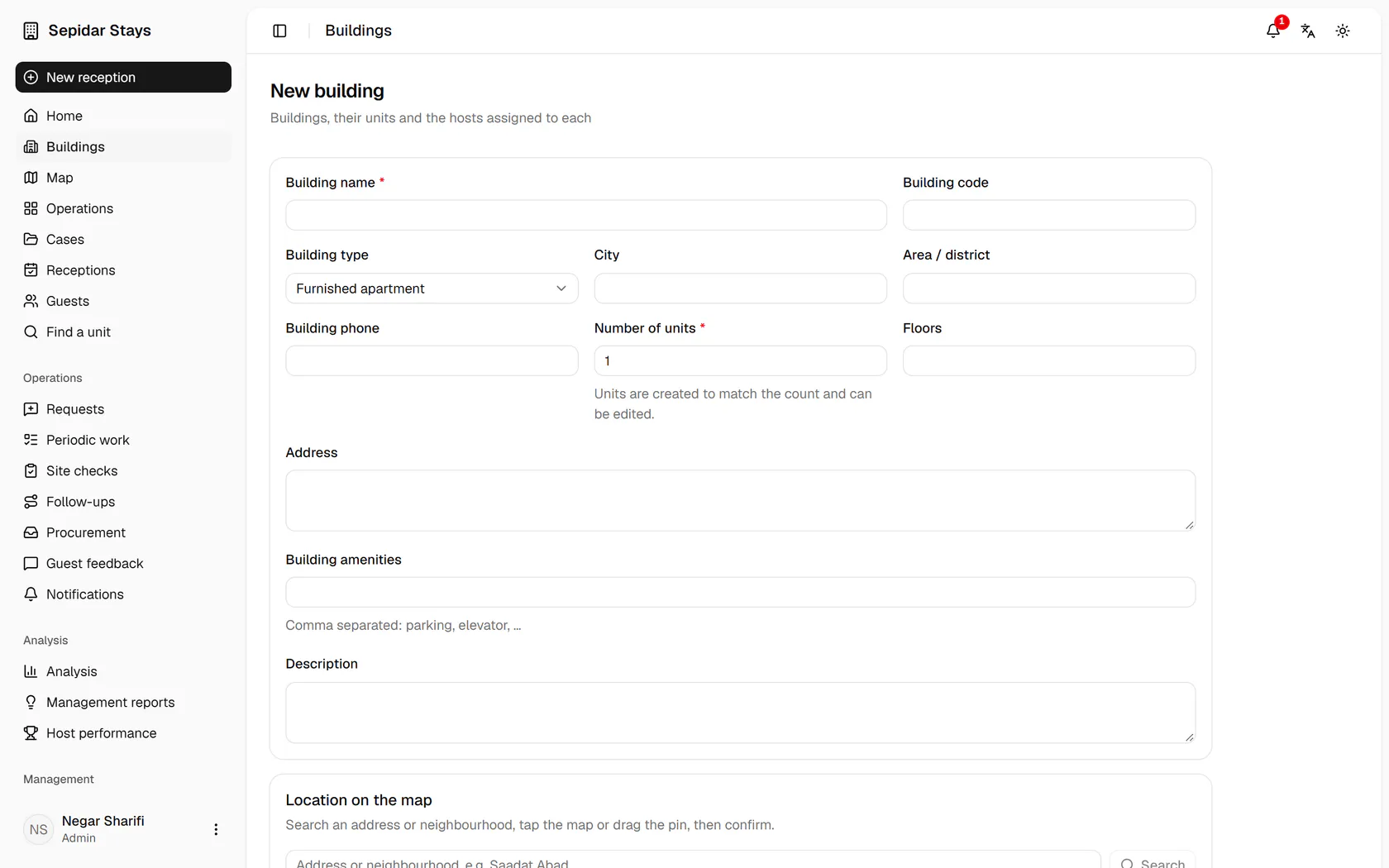
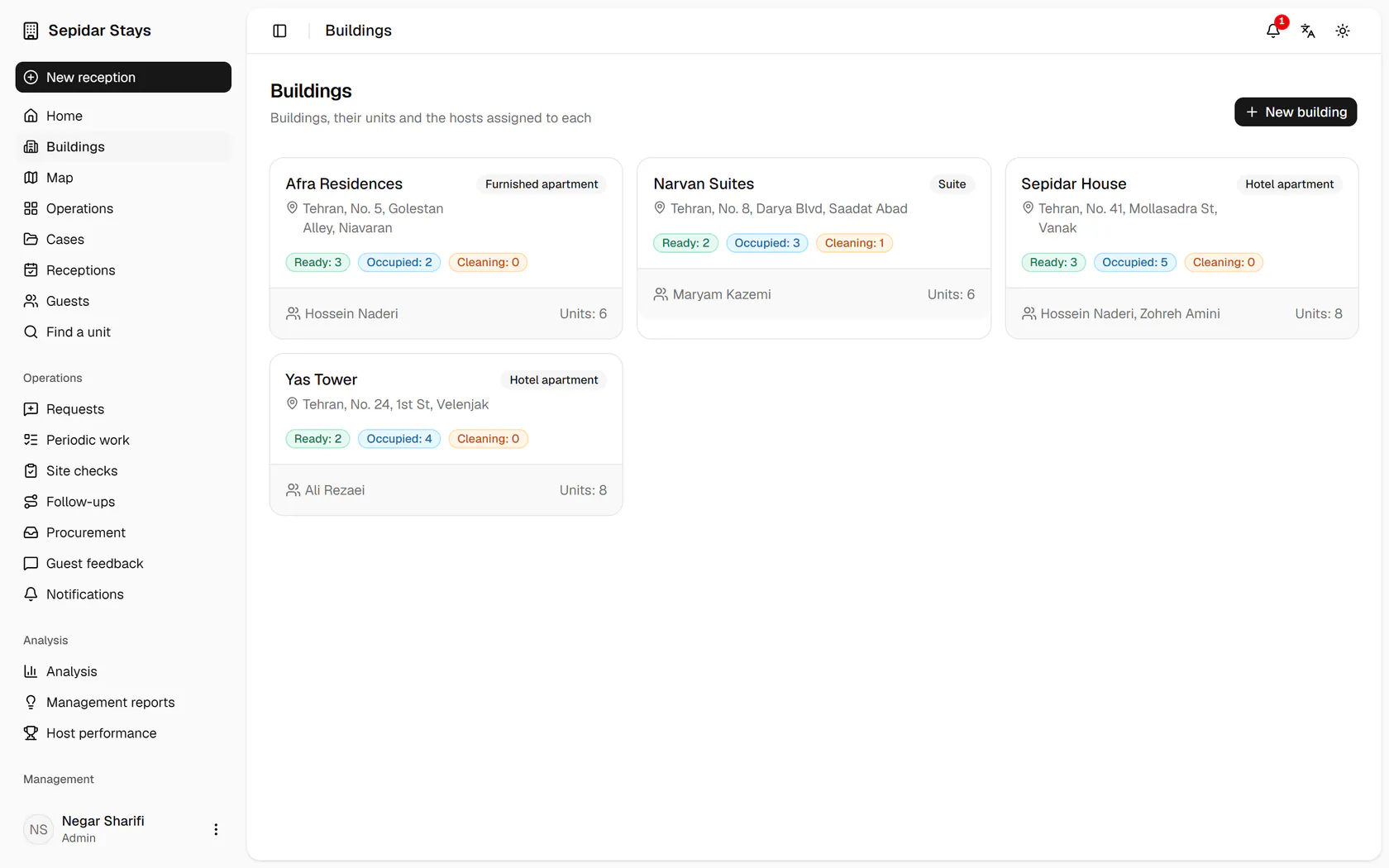
    In Buildings, click New building to start a new one.

    In Buildings, click New building to start a new one.
  2. 2

    Type the building name, then fill in type, city, number of units and address.

    Type the building name, then fill in type, city, number of units and address.
  3. 3

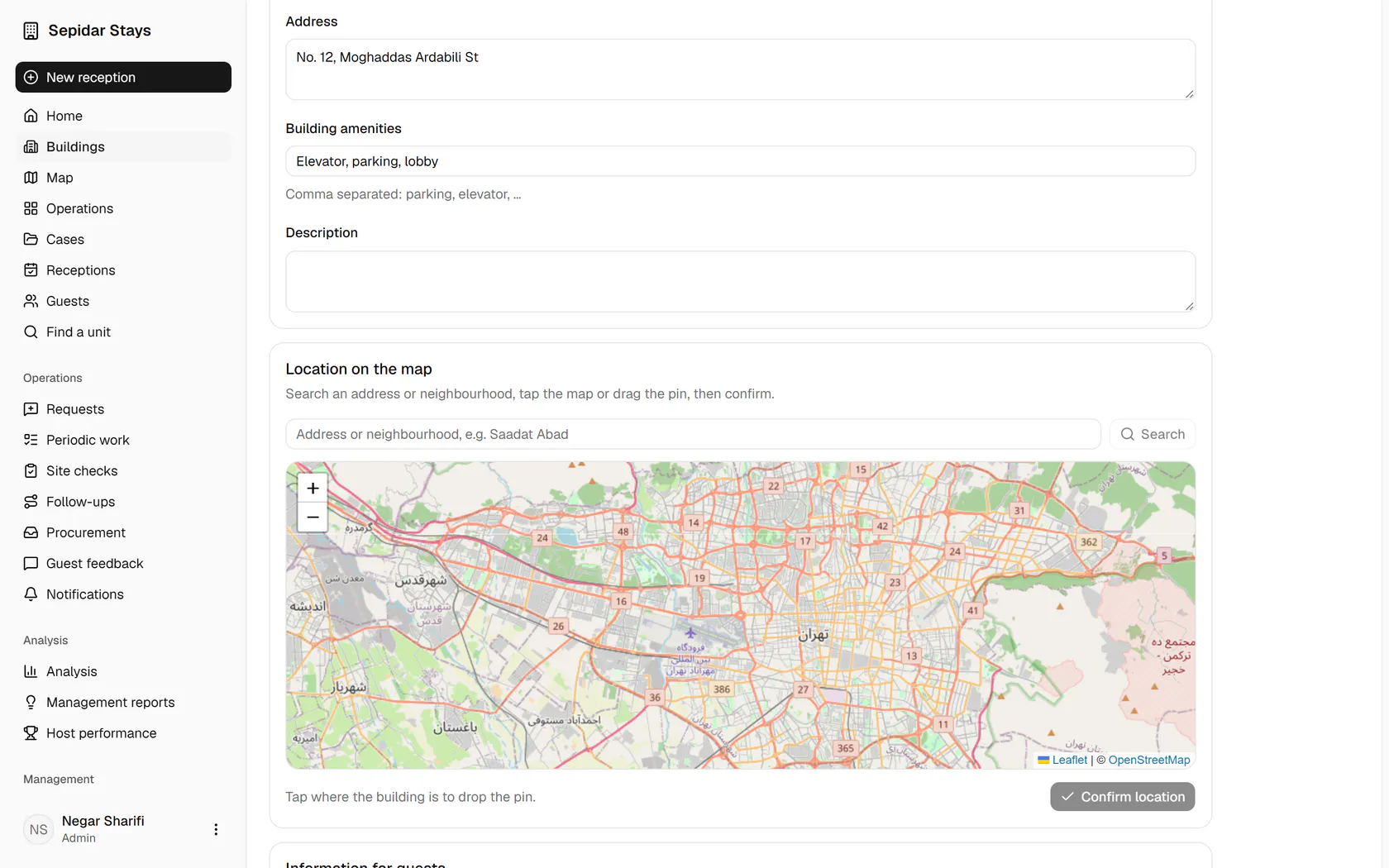
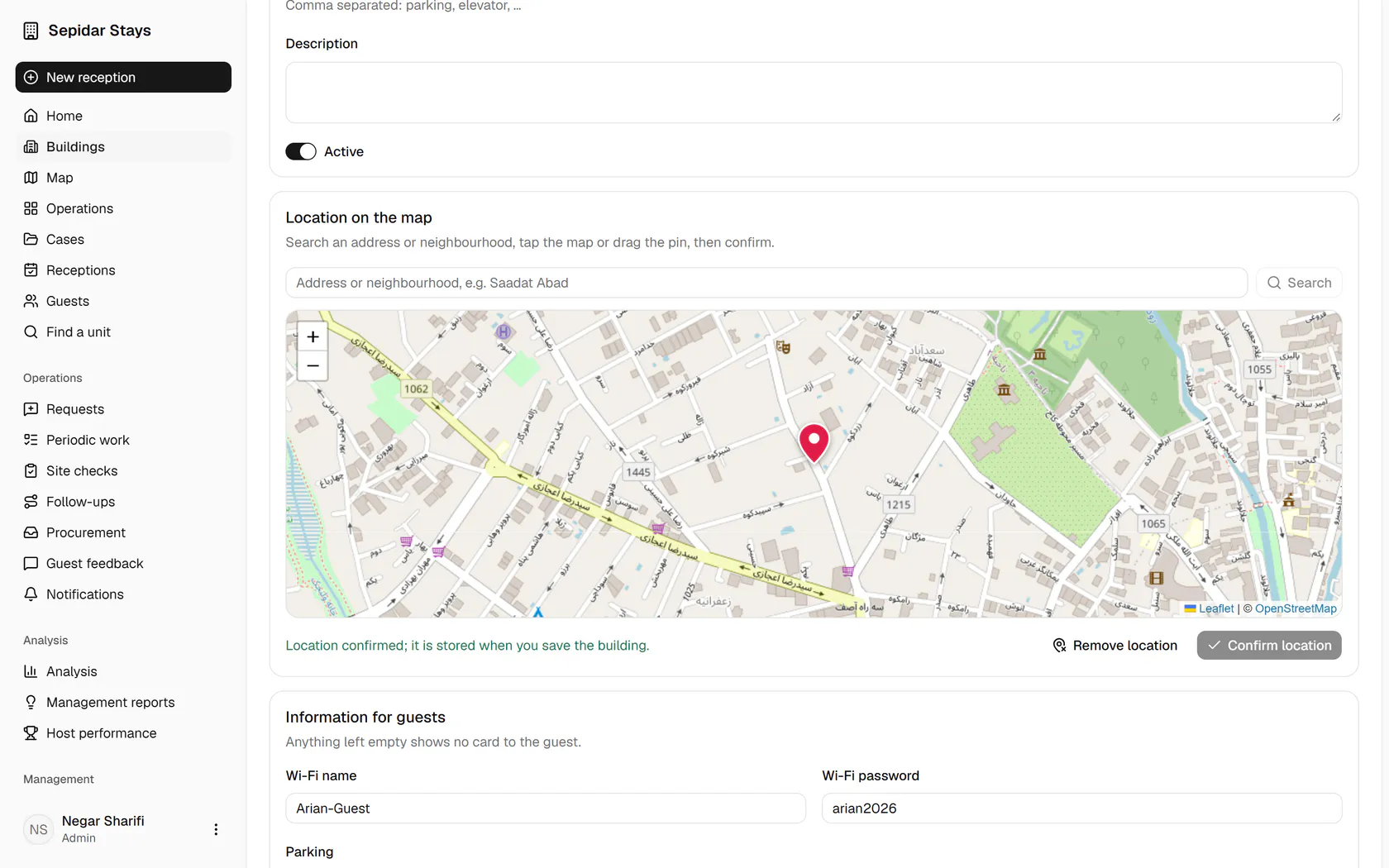
    To place it on the map, search the neighbourhood; no coordinates to type.

    To place it on the map, search the neighbourhood; no coordinates to type.
  4. 4

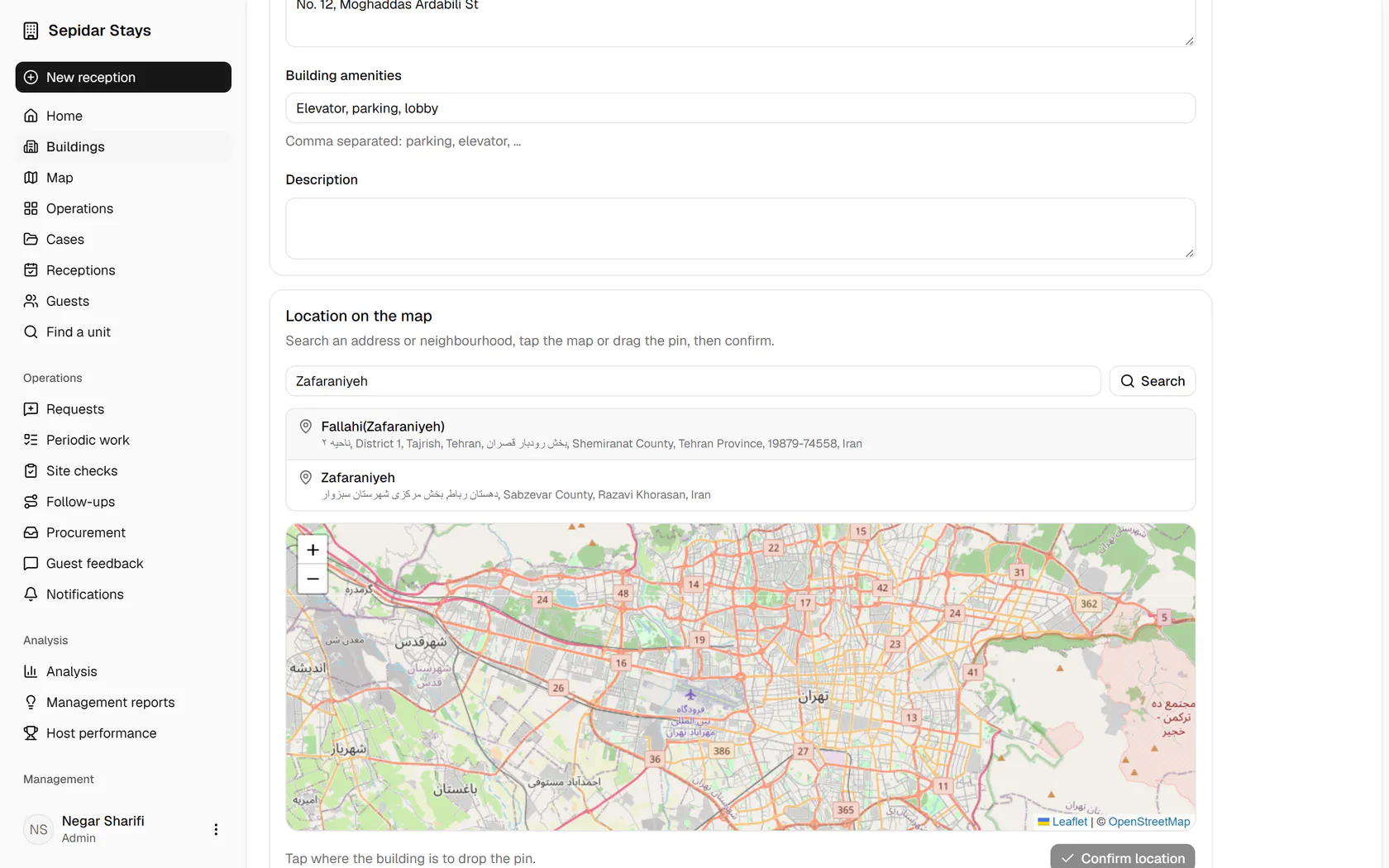
    Pick the right result; the map moves there and drops a pin.

    Pick the right result; the map moves there and drops a pin.
  5. 5

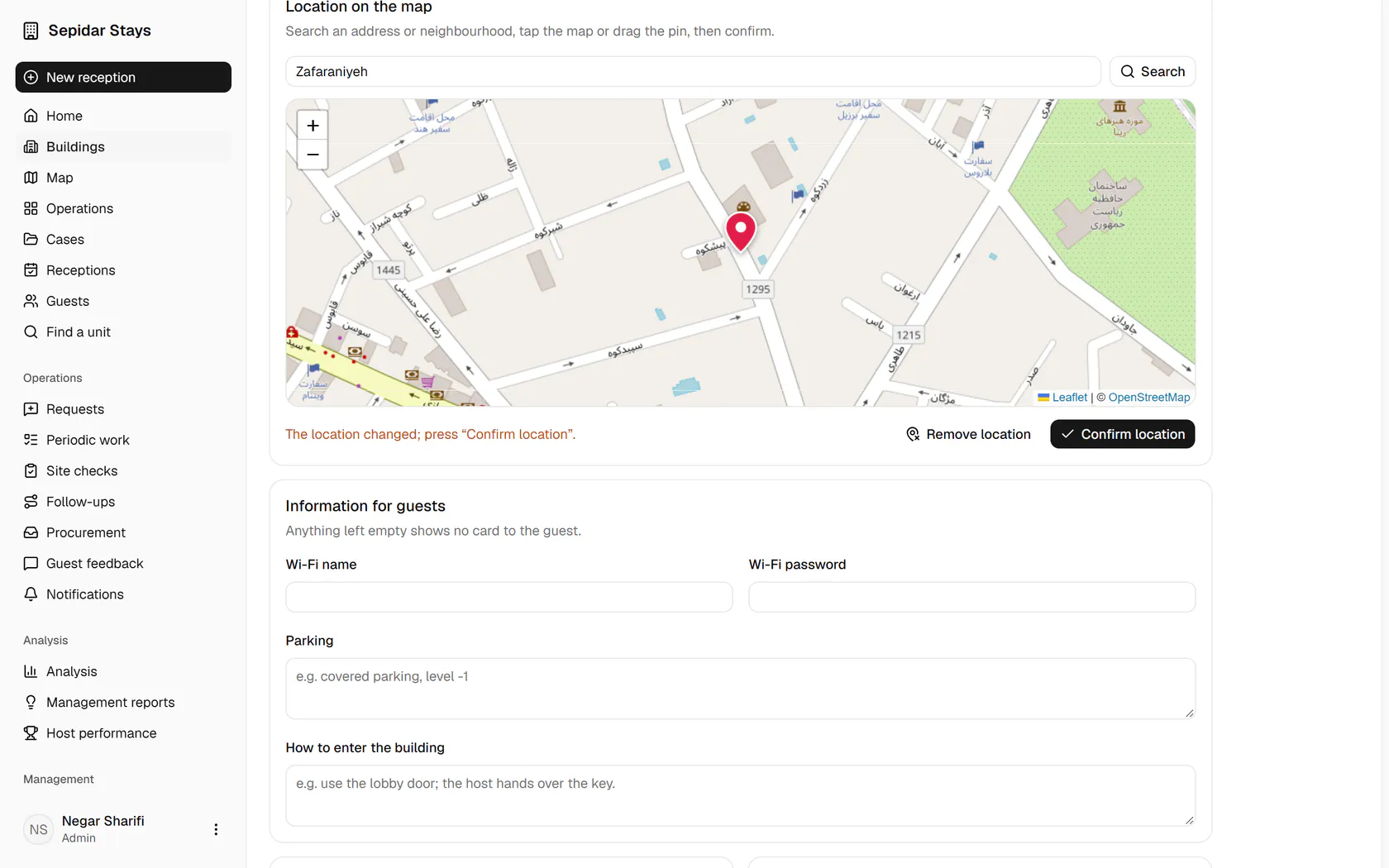
    Drag the pin if needed, then click Confirm location.

    Drag the pin if needed, then click Confirm location.
  6. 6

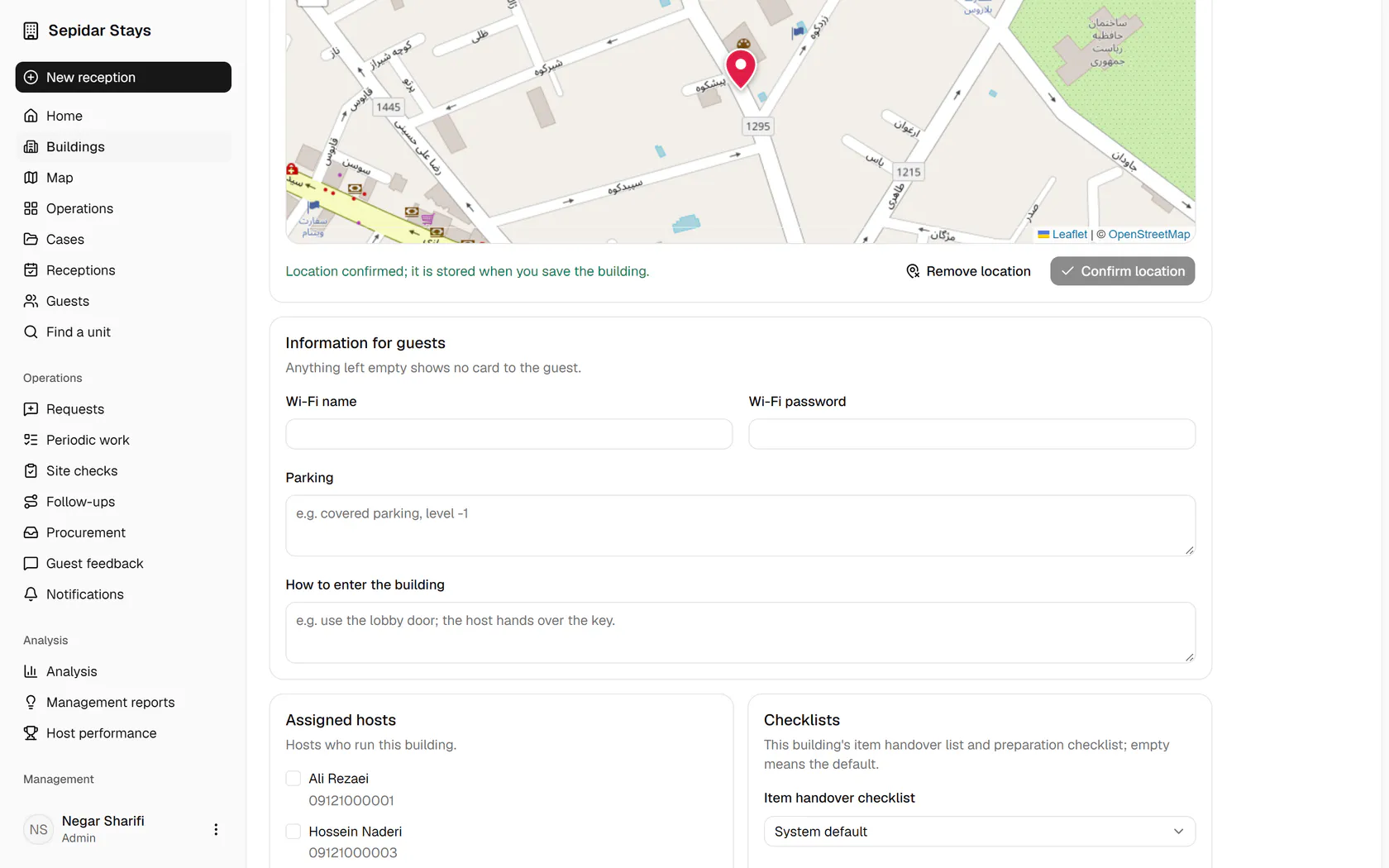
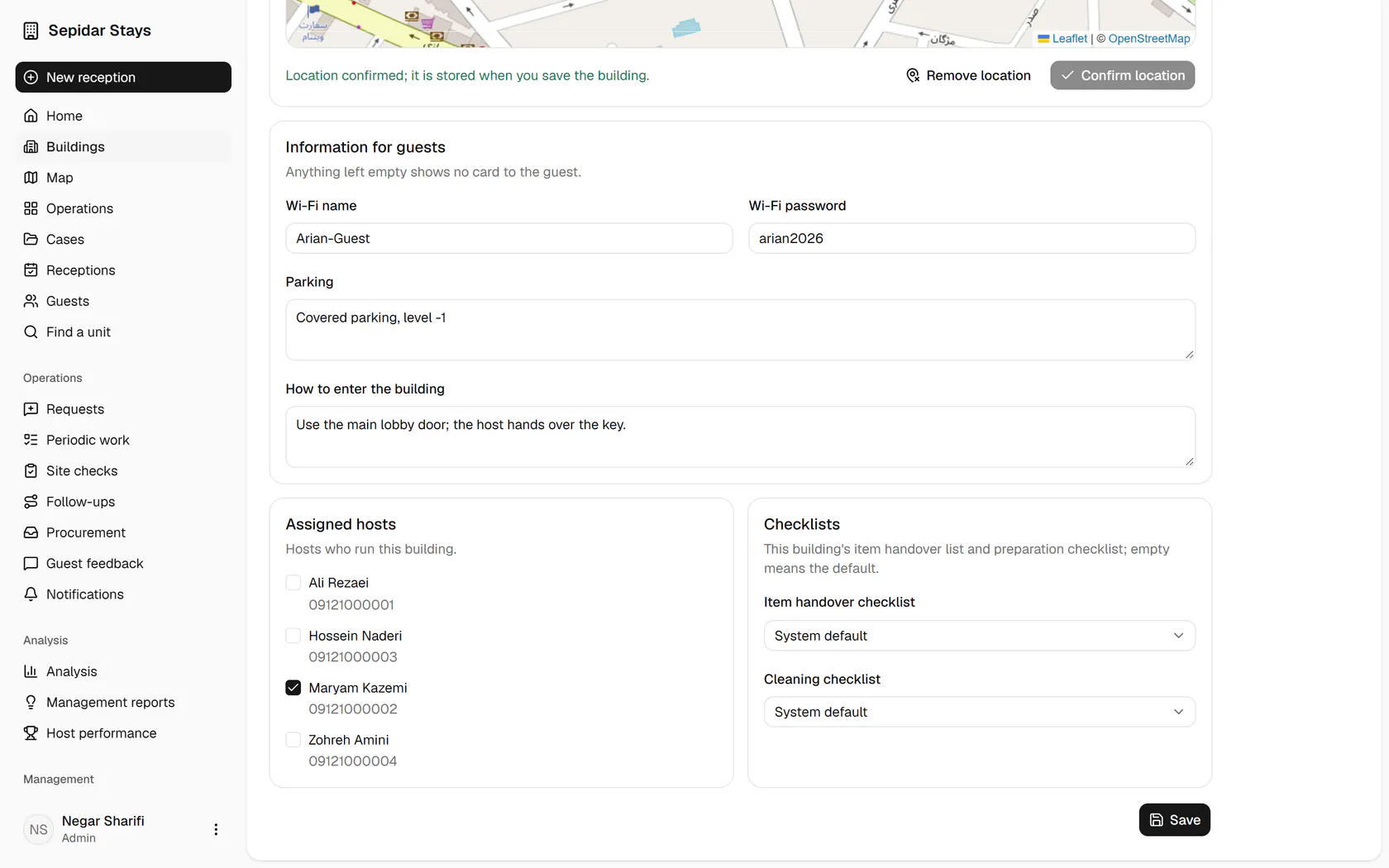
    Add Wi-Fi, parking and entry guide; guests see exactly these in their stay companion.

    Add Wi-Fi, parking and entry guide; guests see exactly these in their stay companion.
  7. 7

    Tick the building's host and click Save.

    Tick the building's host and click Save.
  8. 8

    The building is created with its units, and it now appears on the operational map.

    The building is created with its units, and it now appears on the operational map.